
Change the color of the proposal preview window

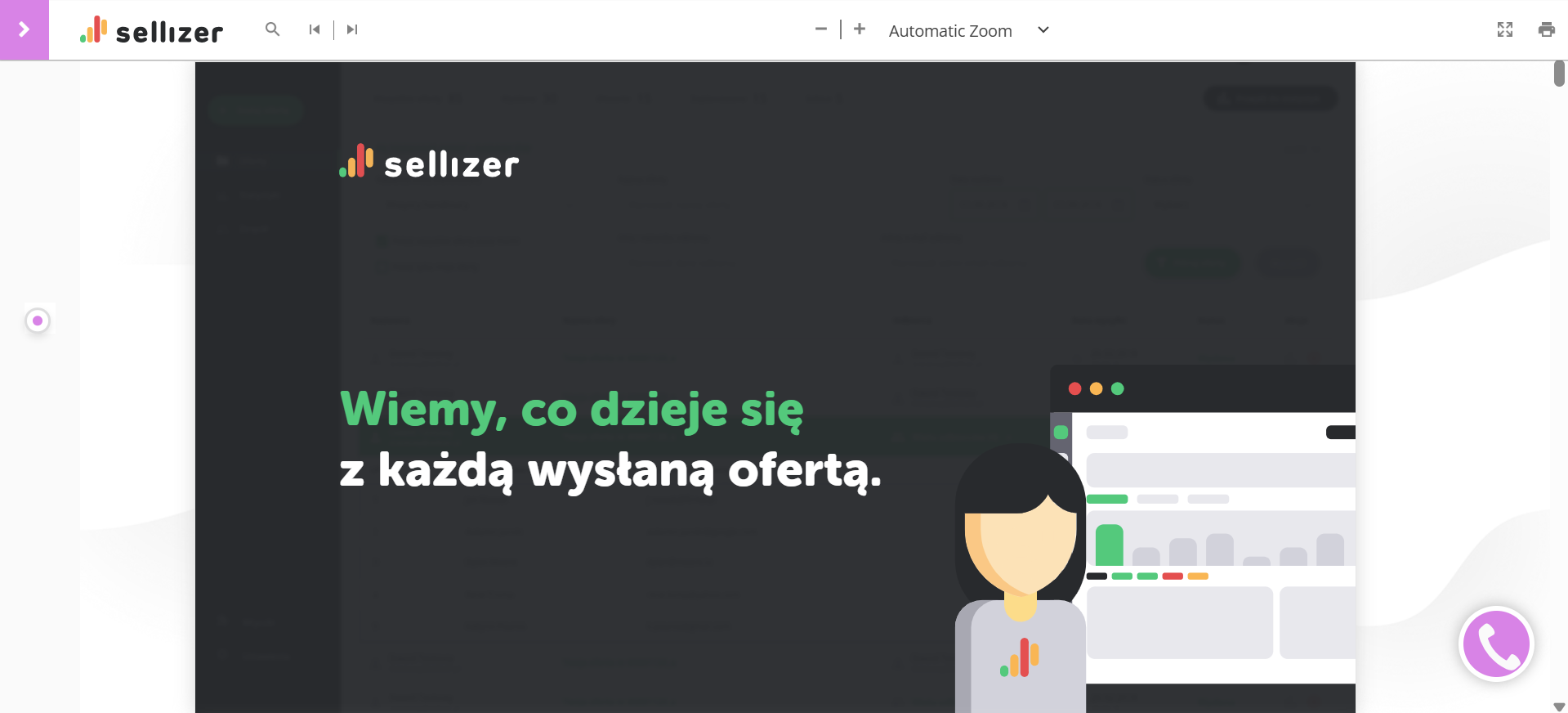
See how to customize viewer and proposal widget elements to match your company's branding!
Would you like the individual elements of the proposal preview window and proposal widgets to be in colors associated with your company's branding? You can do this as follows:
Log in to your Sellizer account.
Go to the Branding tab > New branding or edit the Default branding > Logo and colors section
In Proposal interface color, choose the one that best matches your company's brand colors.
Save your settings and you're done! Now just mark your default branding with a star. From now on, viewer elements that used to be green, as well as the widgets you can add to your proposals, will appear in the color you've chosen.
If you have a sales team and share a branding, the color change will also apply to the accounts in your organization.
Important: This option is only available for Team accounts.
For more information, please contact us via chat, email: support@sellizer.com, or the form.