
Browser extension (Chrome, Firefox, and Microsoft Edge)

Detailed description coming soon. In the meantime, we encourage you to download the extension for your browser:
After installation, you can find the extension under the puzzle icon in the top-right corner of your browser.
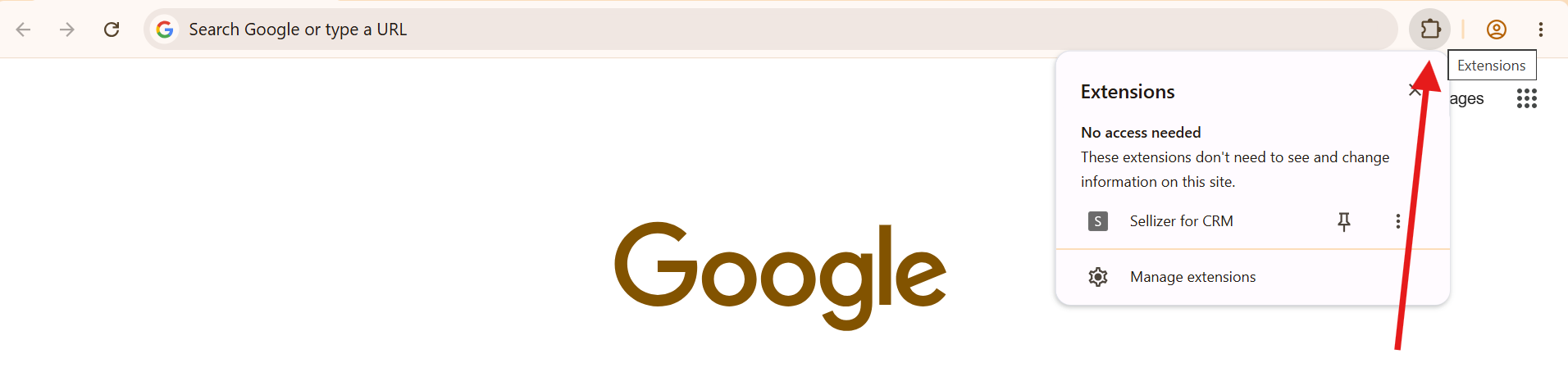
Step 1 — First launch
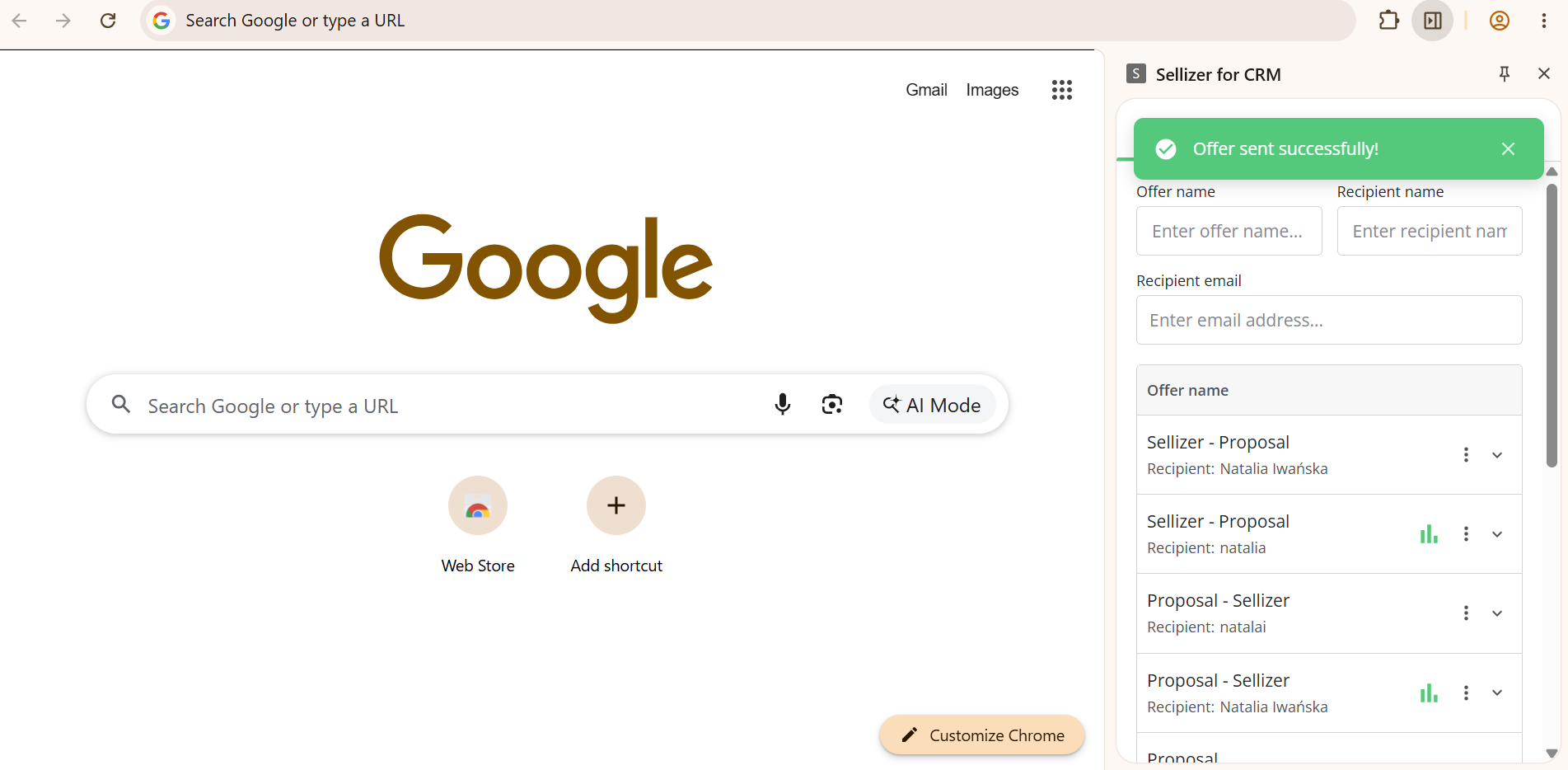
Click the puzzle piece icon and sign in to Sellizer. The extension will appear as a sidebar on the right-hand side — no matter what page you are currently on.
Step 2
In the sidebar, you have two tabs available — depending on your needs:
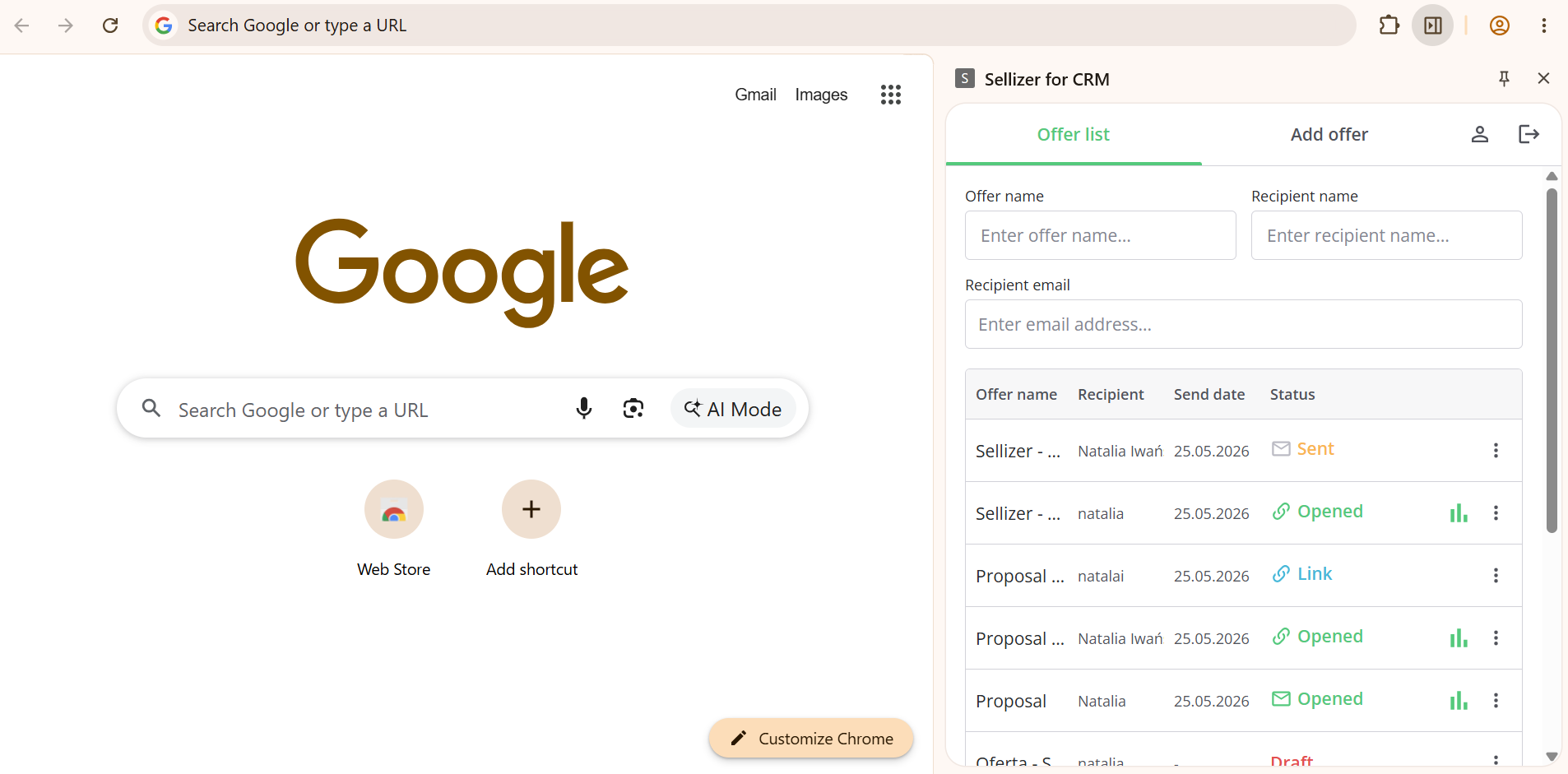
a) Want to review the offers you have sent? Go to the “Offer list” tab — there you will find all the offers sent from your account along with their statistics.
b) Want to send a new offer? Go to the “Add offer” tab and upload a file or select a previously prepared template or document from Sellizer.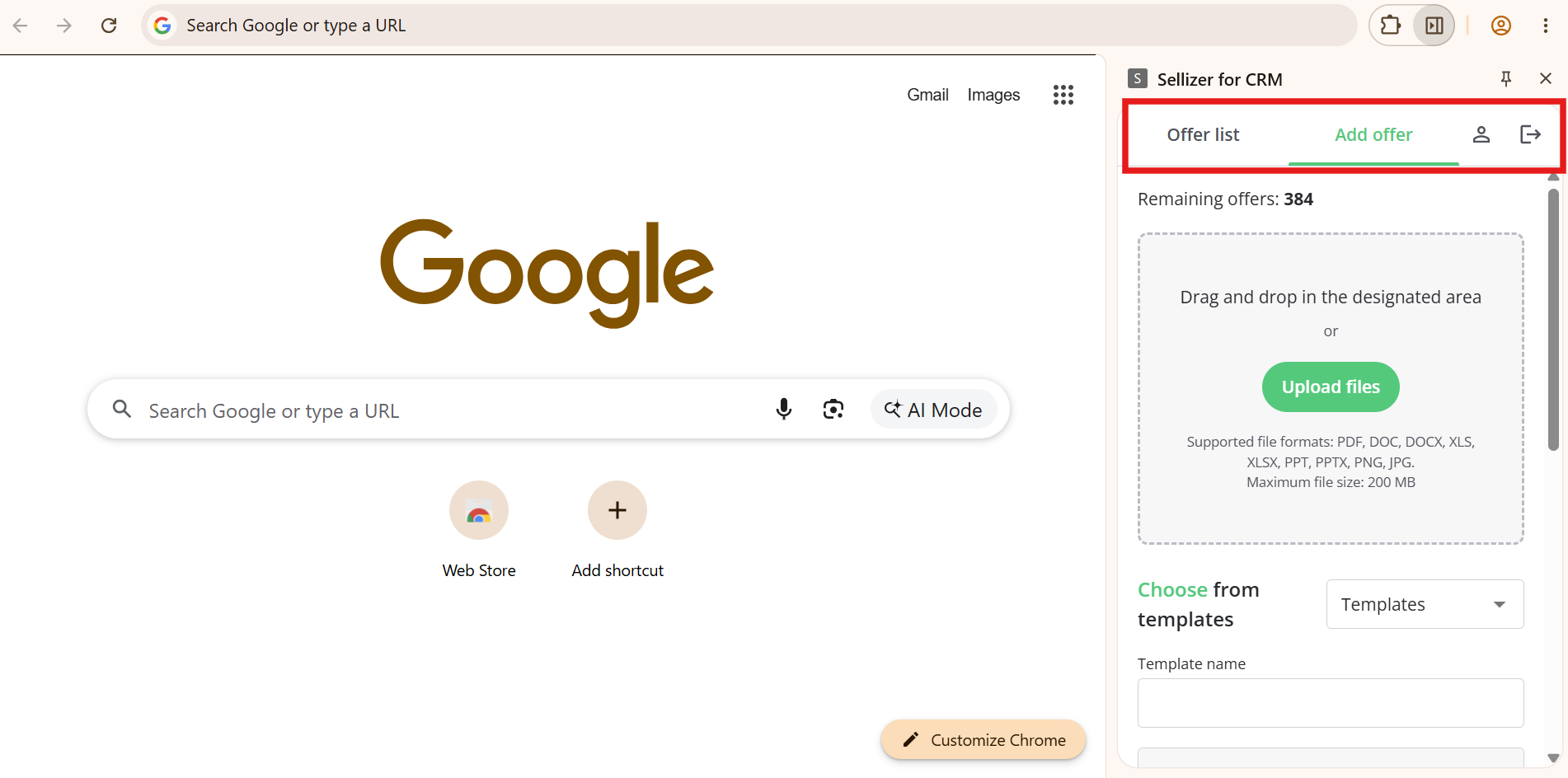
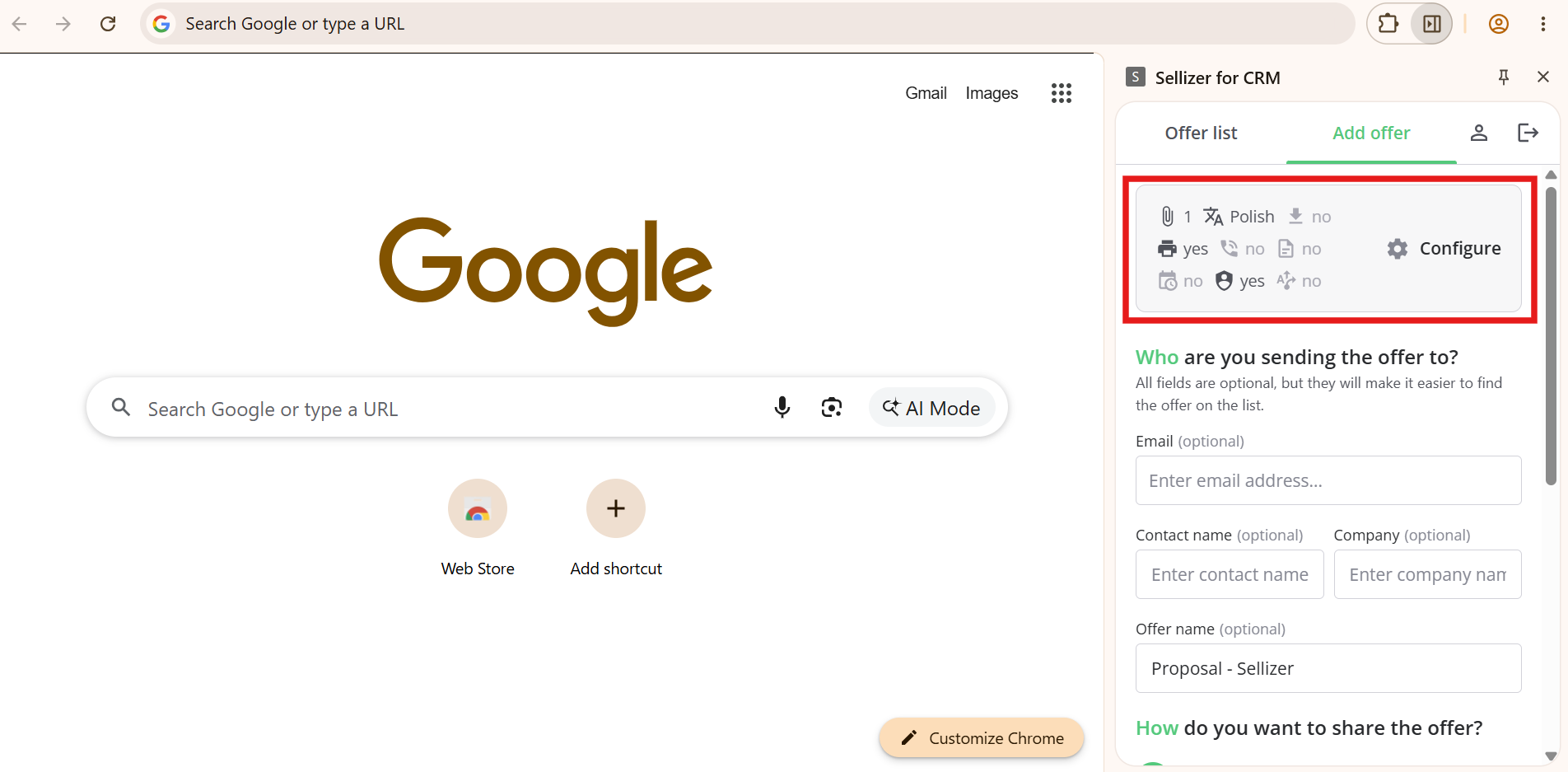
Step 3 — Offer configuration (optional)
Before sending, you can configure the proposal — for example, add an expiry date, a “Order contact” / “Order contract template” pop-up, or automatic follow-ups.
In universal mode (outside of the supported CRMs), you fill in the recipient’s details manually — you enter the first name, last name, and email address yourself in the appropriate fields.
Step 4 — Sending the offer
Choose how you want to send it:
Option A — Copy link. Copy the link and send it yourself, for example directly via email, messenger, or any other channel you use when working with the client. Once the link is copied, simply forward it to the client outside of Sellizer.
Remember to choose the visual style of the offer link:
• Graphic
• Text
• HTML
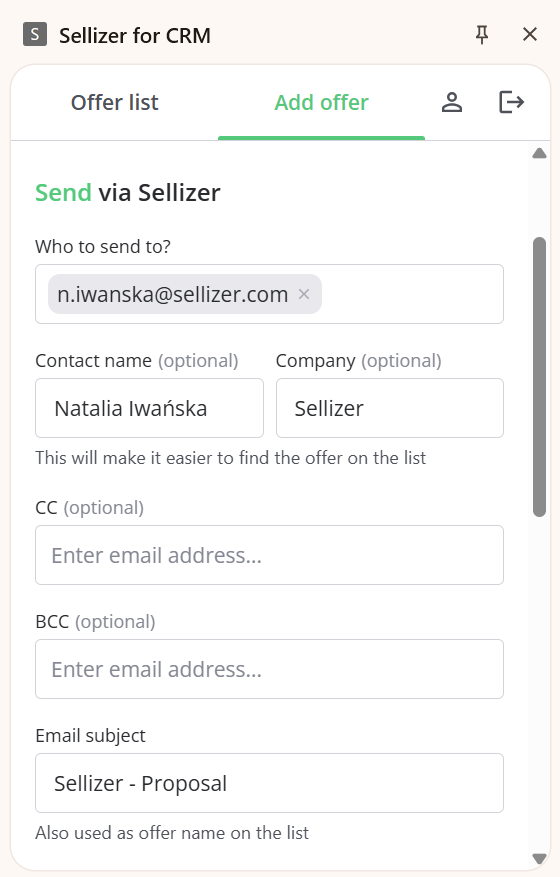
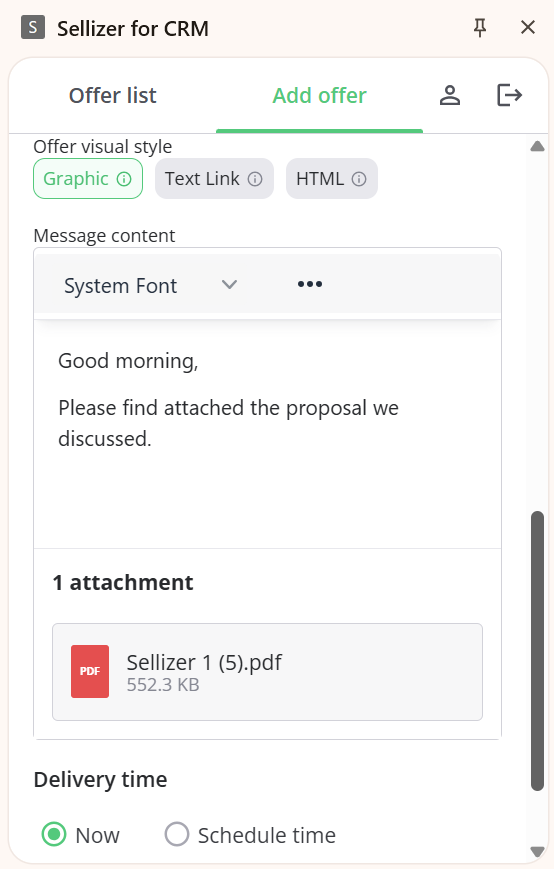
Option B — Send via Sellizer — click “Continue”, and then:
1. Fill in the recipient’s details manually (first name, last name, email address).
2. Fill in the message subject (email title).
3. Choose the visual style of the offer (the graphic form is the default).
4. Fill in the message content.
5. Decide whether to send the offer immediately or schedule it for later.
6. Click “Continue” to go to the offer summary.
7. Confirm sending using the “Send now” button.
Monitoring statistics
In the “Offer list” tab, you can track the statistics of sent offers on an ongoing basis. If the recipient opens the offer, a green statistics icon will appear next to it — click it to view the details.
Tip: You can enlarge the extension’s sidebar at any time.
*Are you using one of the supported CRMs? We have something more for you.
If you work in one of the systems listed below, the Sellizer extension will automatically fetch the recipient’s details — you do not need to fill in anything manually:
• Livespace
• Bitrix24
• Firmao
• Pipedrive
• HubSpot
• Zoho
• Monday CRM
• Raynet
• Microsoft Dynamics 365
• Salesforce
Additionally, you can also use the Sellizer add-in in Outlook!