Integration with Outlook (app)

Adding apps in Outlook is only possible when logged in with a Microsoft account. If your email was configured using SMTP/IMAP, the "Get Add-ins" button will not be available.
How to Install the Sellizer Add-in for Outlook?
1. Log in to your mailbox.
2. Open a new message, click Apps, then Get Add-ins.
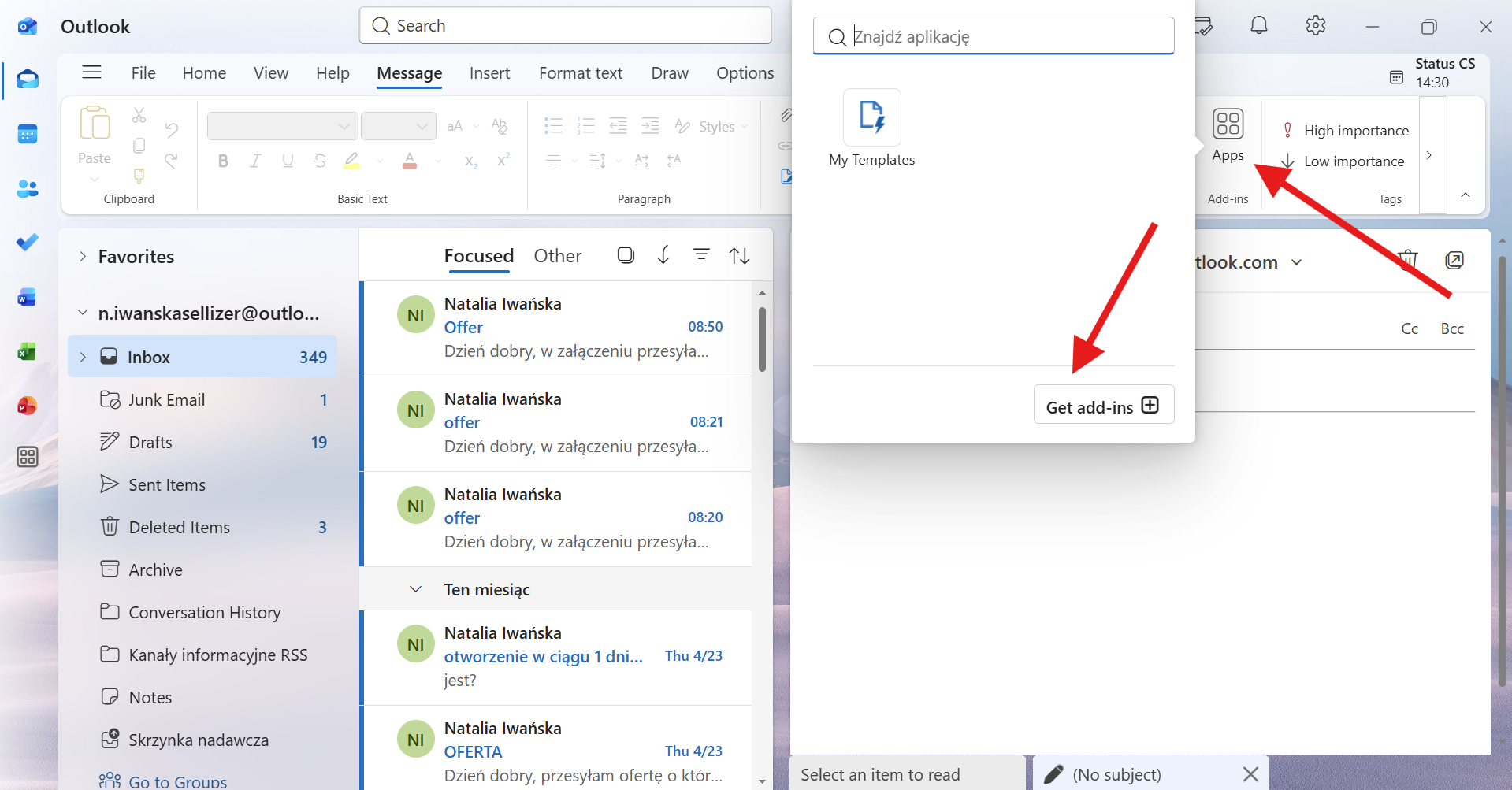
3. In the Search add-ins field, type Sellizer.
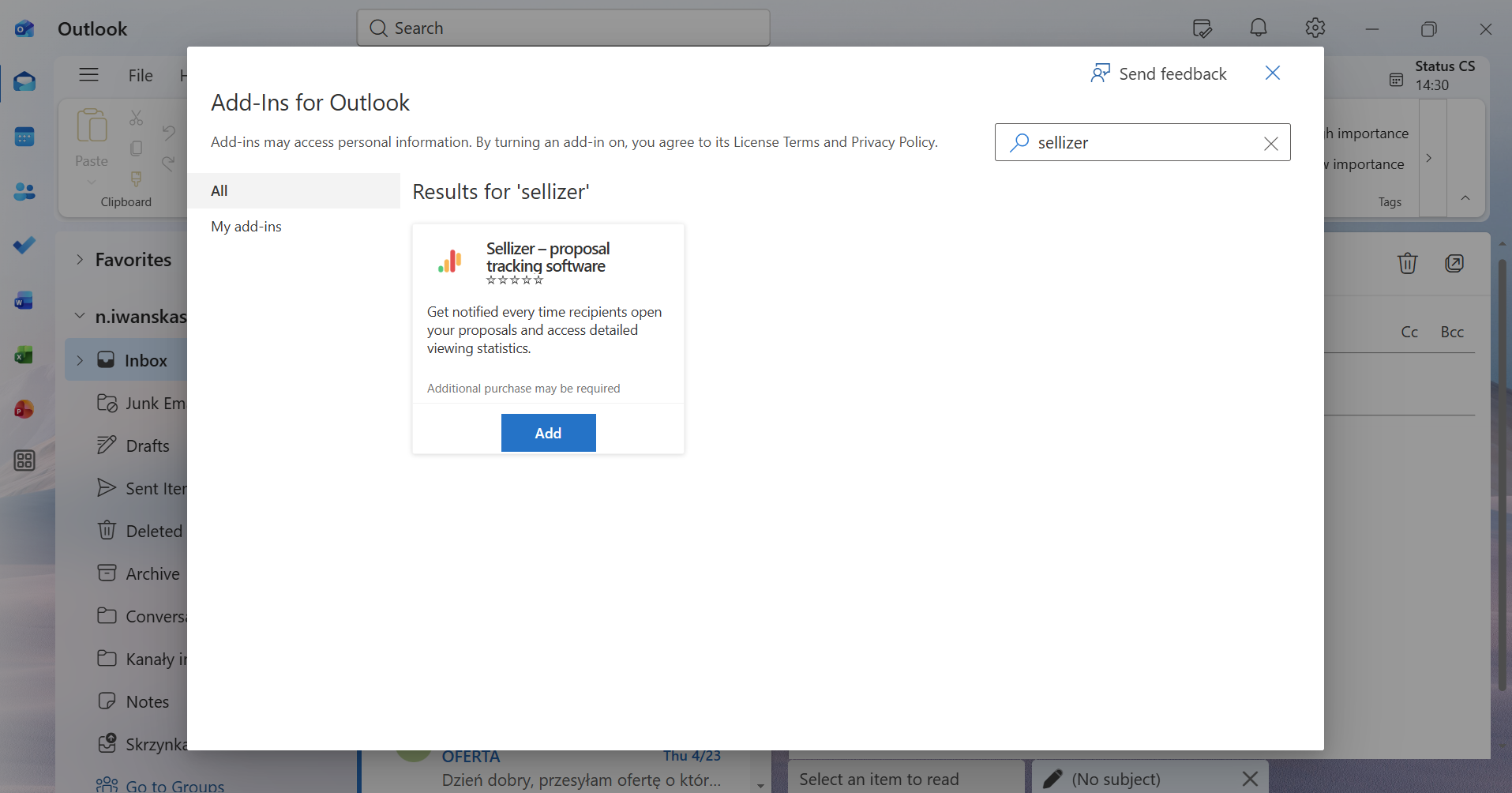
4. Click the search result, then click Add.
That's it — the add-in is installed and ready to use! You will be able to access it when composing a new message.
Step 1 — First Launch
Click New Email, then select Apps and Sellizer. Log in to Sellizer.
Step 2
Depending on your needs:
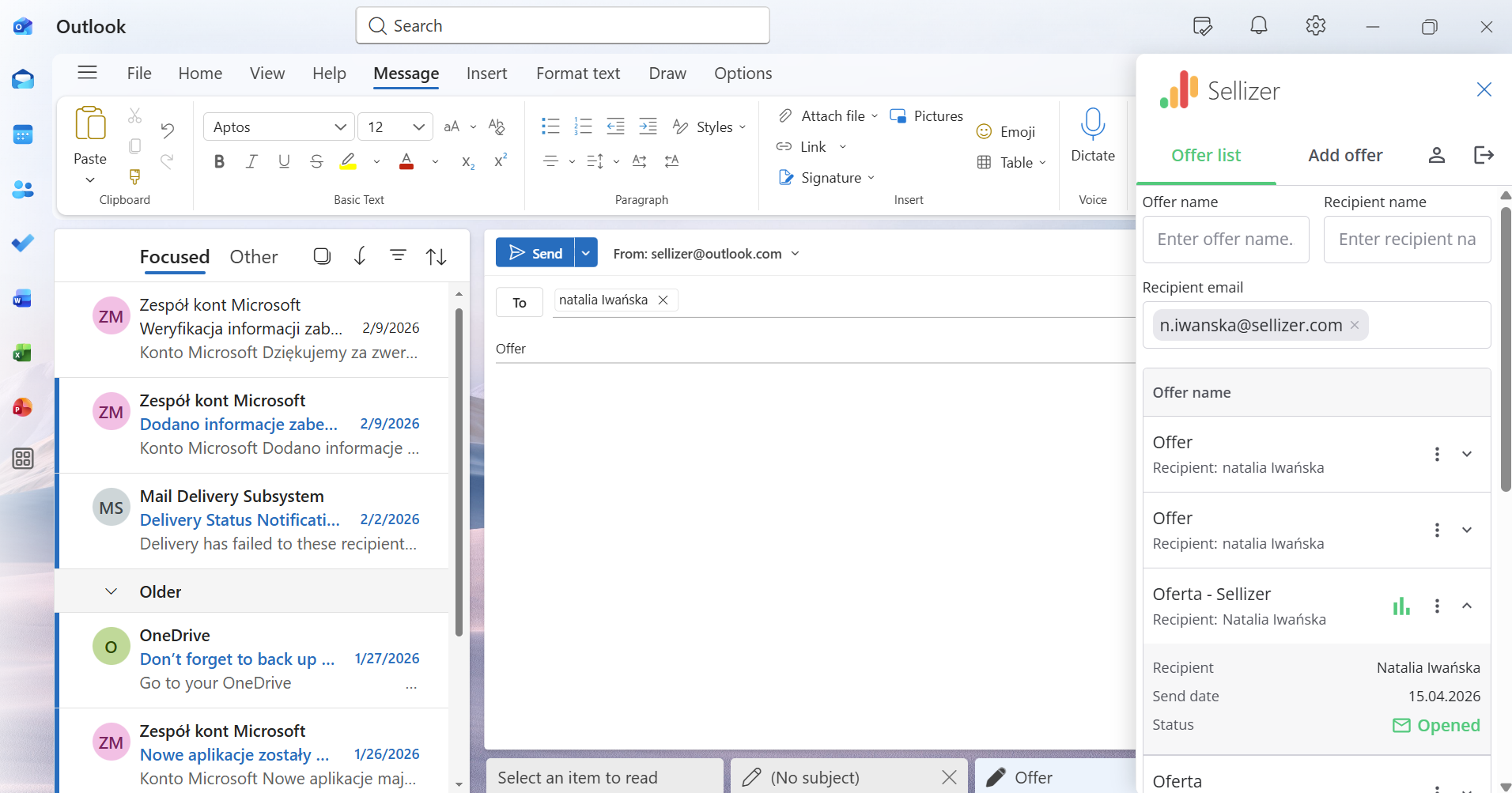
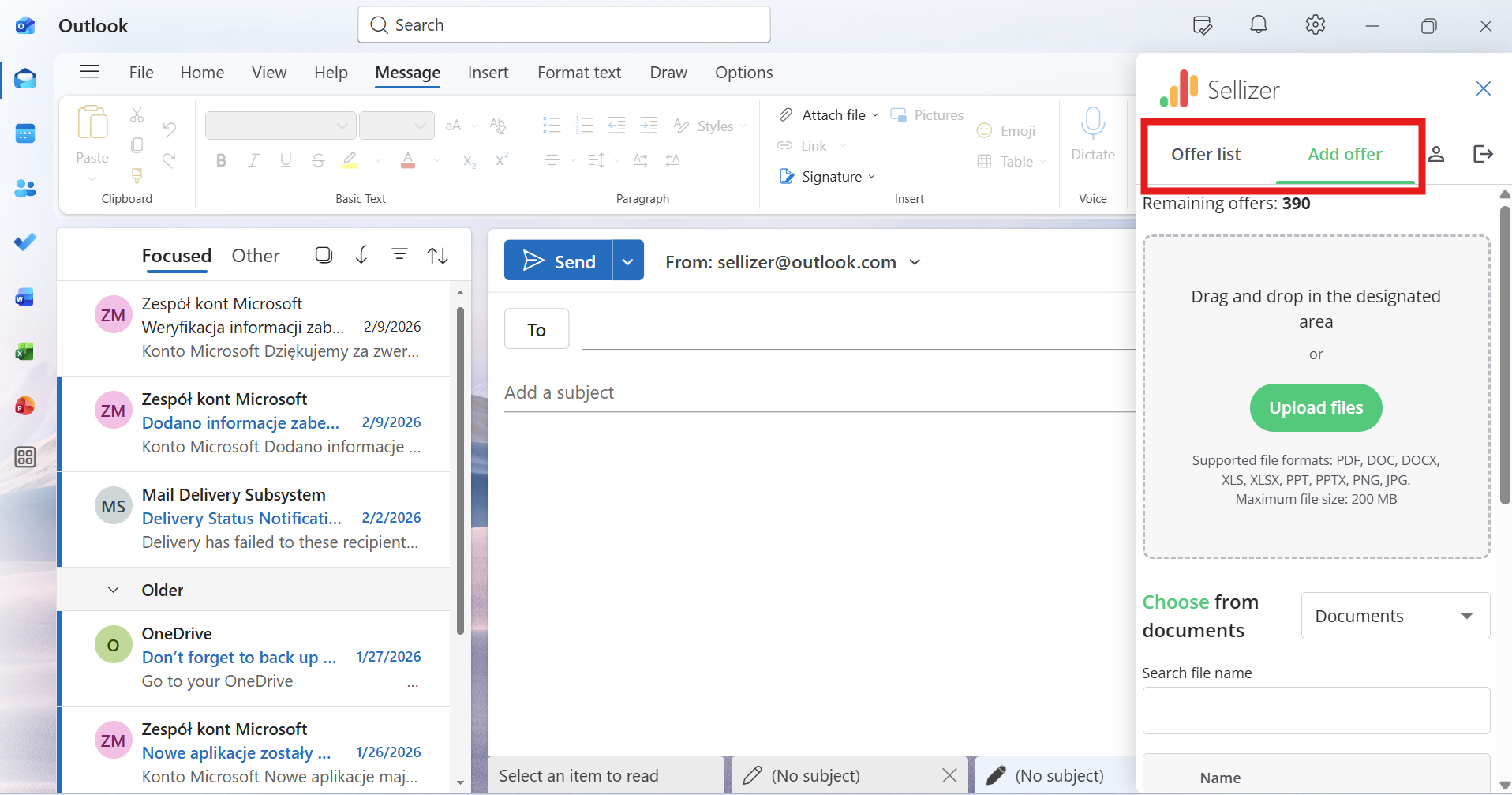
a) Want to review sent offers? Go to the "Offer List" tab — you will find all offers sent to a given contact in this sales opportunity.
b) Want to send a new offer? Go to the "Add Offer" tab and upload a file or select a previously prepared template or document from Sellizer.
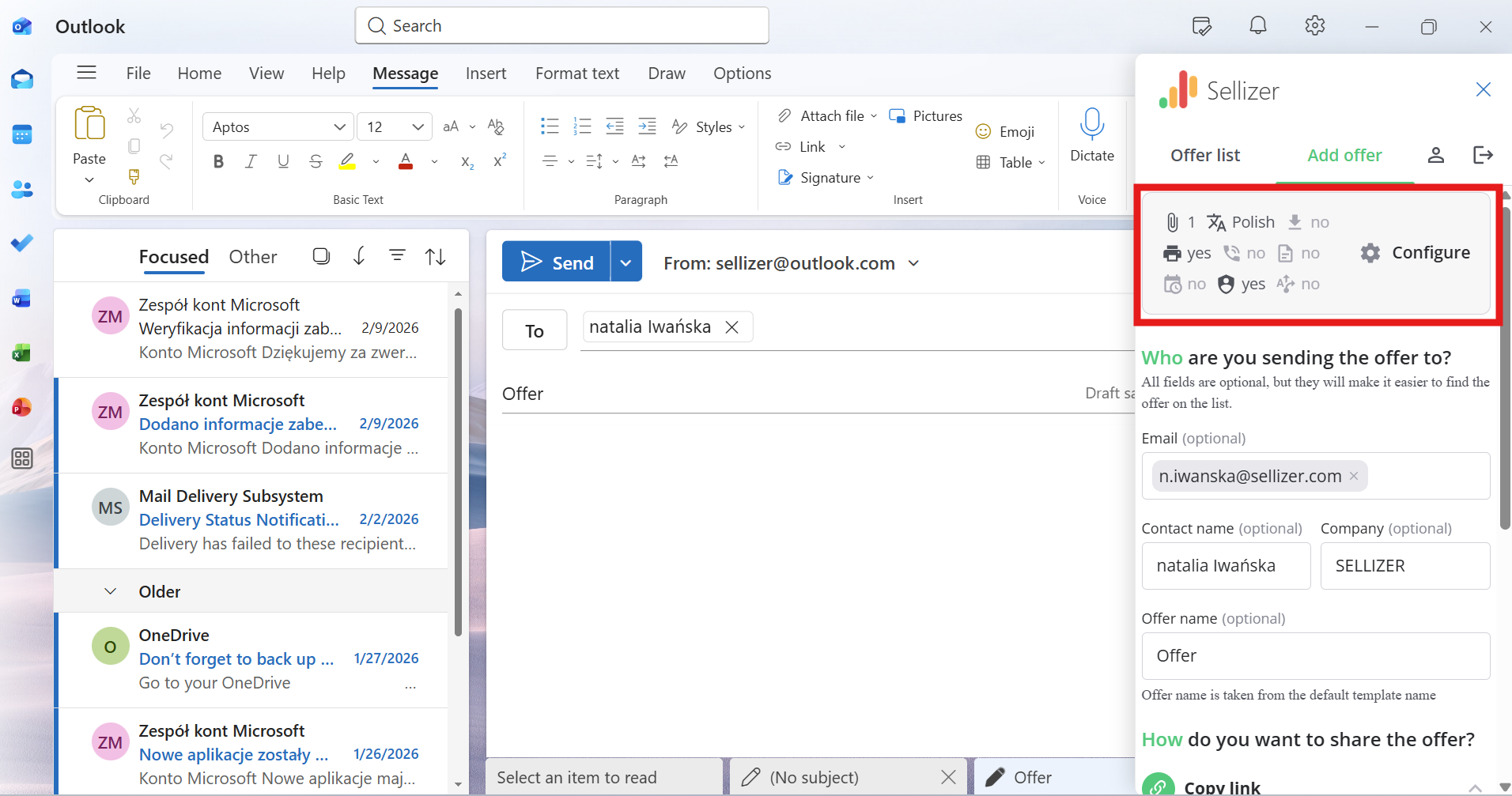
Step 3 — Offer Configuration (optional)
Before sending, you can configure the offer — e.g. add an expiry date, a "Order Contact" / "Order Draft Agreement" pop-up, or automatic follow-ups. If you fill in the recipient's details in the email, they will be automatically populated in the add-in.
Step 4 — Sending the Offer
Choose how to send:
Option A — Copy Link — Copy the link and send it manually (you can send it to the recipient outside of Outlook). Once copied, simply forward the link to the client outside of Sellizer. Remember to select the visual style of the offer link:
- Graphic
- Text
- HTML
Option B — Paste Link — Paste the link directly into the email in Outlook.
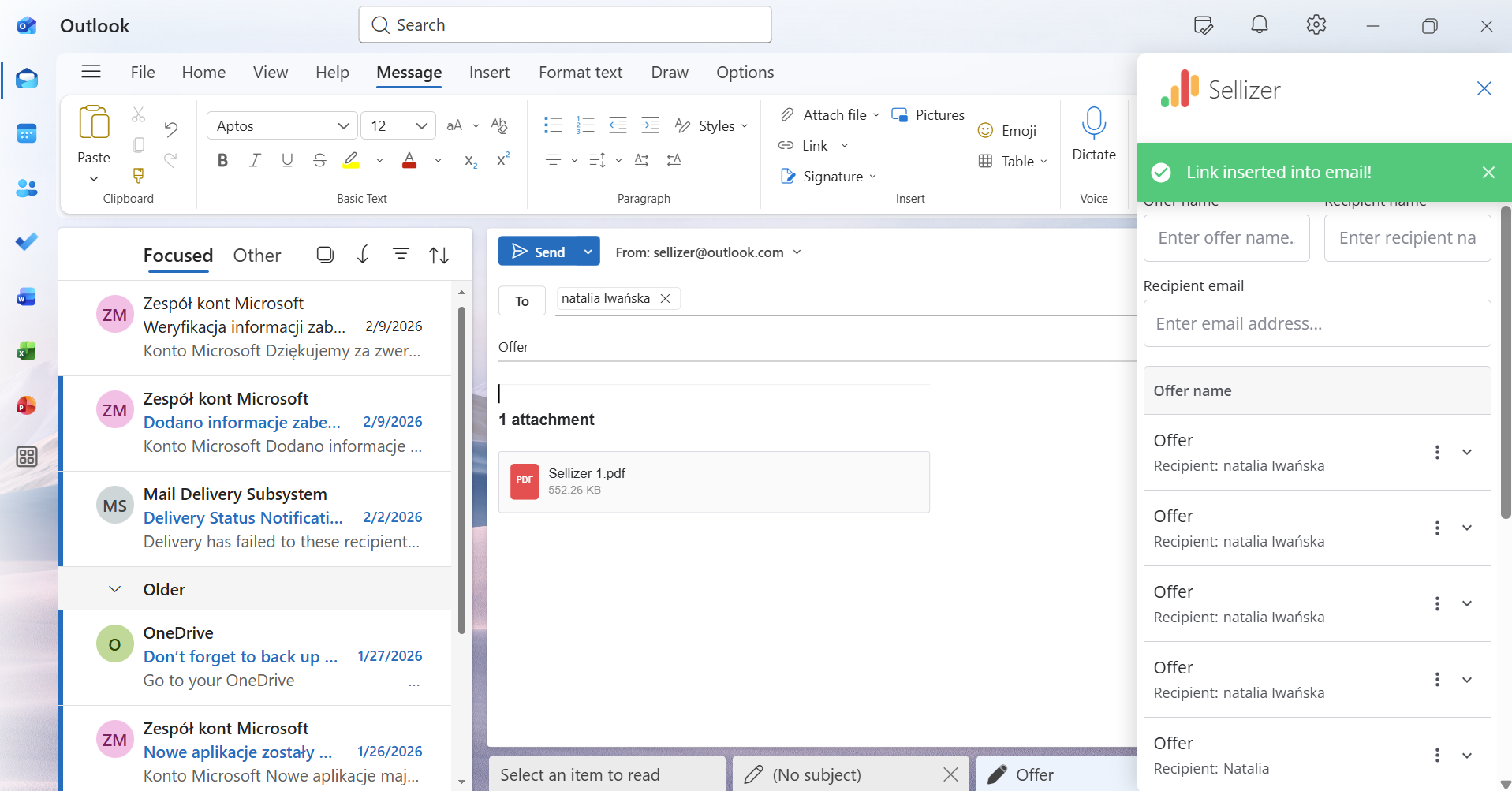
Option C — Send via Sellizer (if you want to send the email through Sellizer while in Outlook, rather than just generating a link) — click "Continue", then:
1. Recipient details are automatically pulled from the email.
2. Fill in the message subject (email subject).
3. Choose the visual style of the offer (graphic format is the default).
4. Fill in the message content.
5. Choose whether to send the offer immediately or schedule it for later.
6. Click "Continue" to proceed to the offer summary.
7. Confirm by clicking "Send Now".
Monitoring Statistics
In the "Offer List" tab, you can track the statistics of sent offers in real time. If a recipient opens the offer, a green statistics icon will appear next to it — click it to view the details.