Integration with Raynet

To download the plugin, go to the official store of the browser you are using:
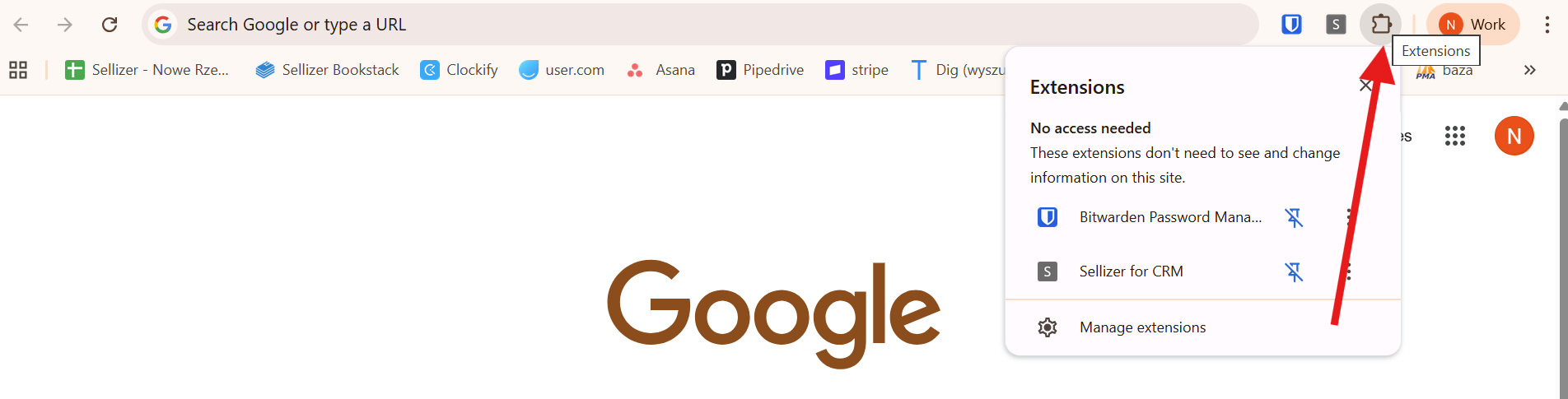
After successfully downloading and installing, the plugin will appear in the top right corner of your browser, under the puzzle piece icon.
Step 1 — First Launch
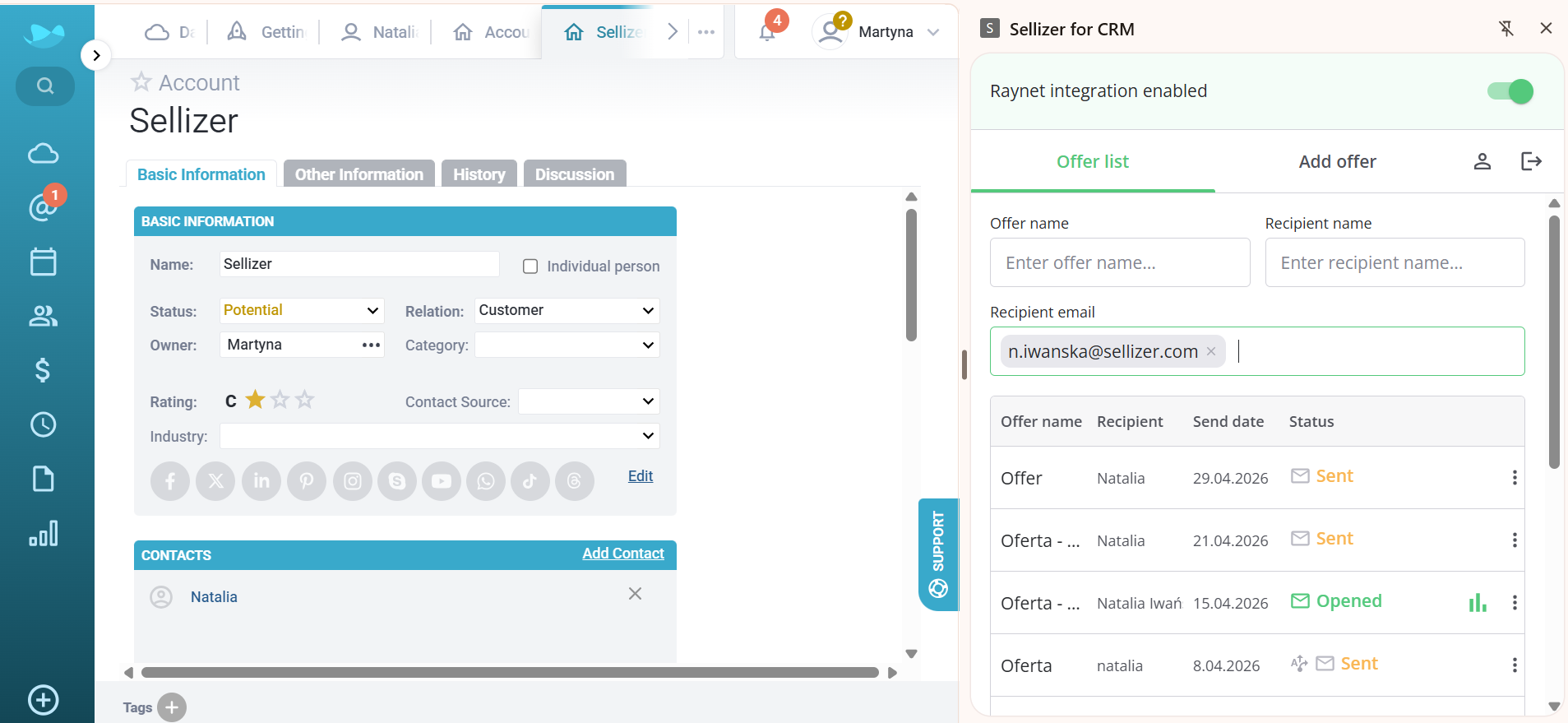
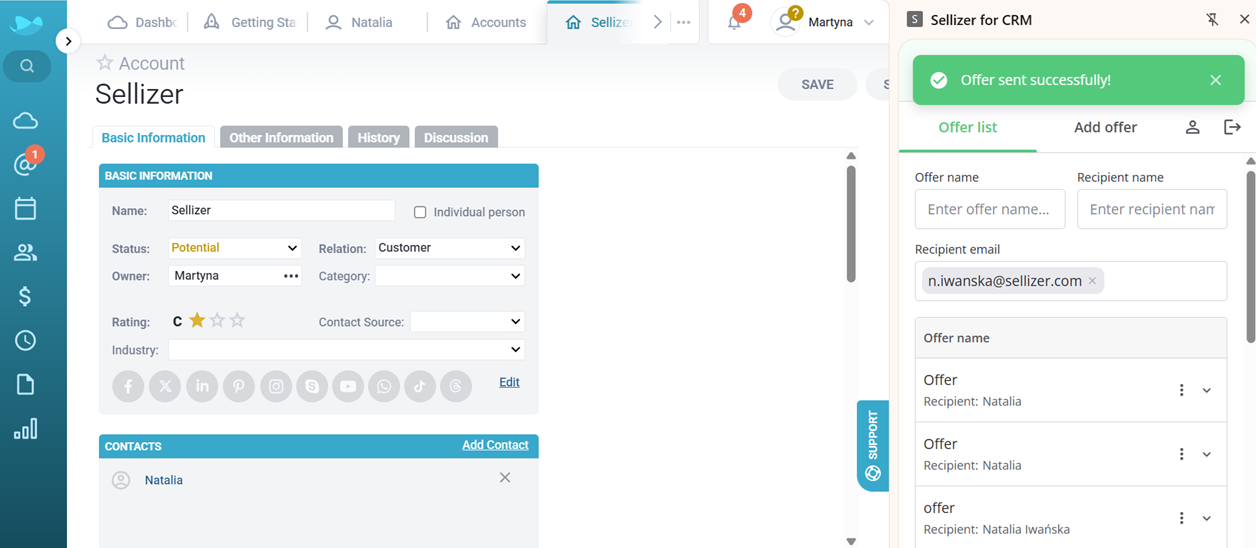
Log in to Raynet, then click the puzzle piece icon and log in to Sellizer. The extension will appear as a sidebar on the right side -directly next to your CRM view.
Step 2
Select the desired client. Depending on your needs:
a) Want to review sent offers? Go to the "Offer List" tab — you'll find all offers sent to a given contact within that sales opportunity.
b) Want to send a new offer? Go to the "Add Offer" tab and upload a file, or choose a previously prepared template or document from Sellizer.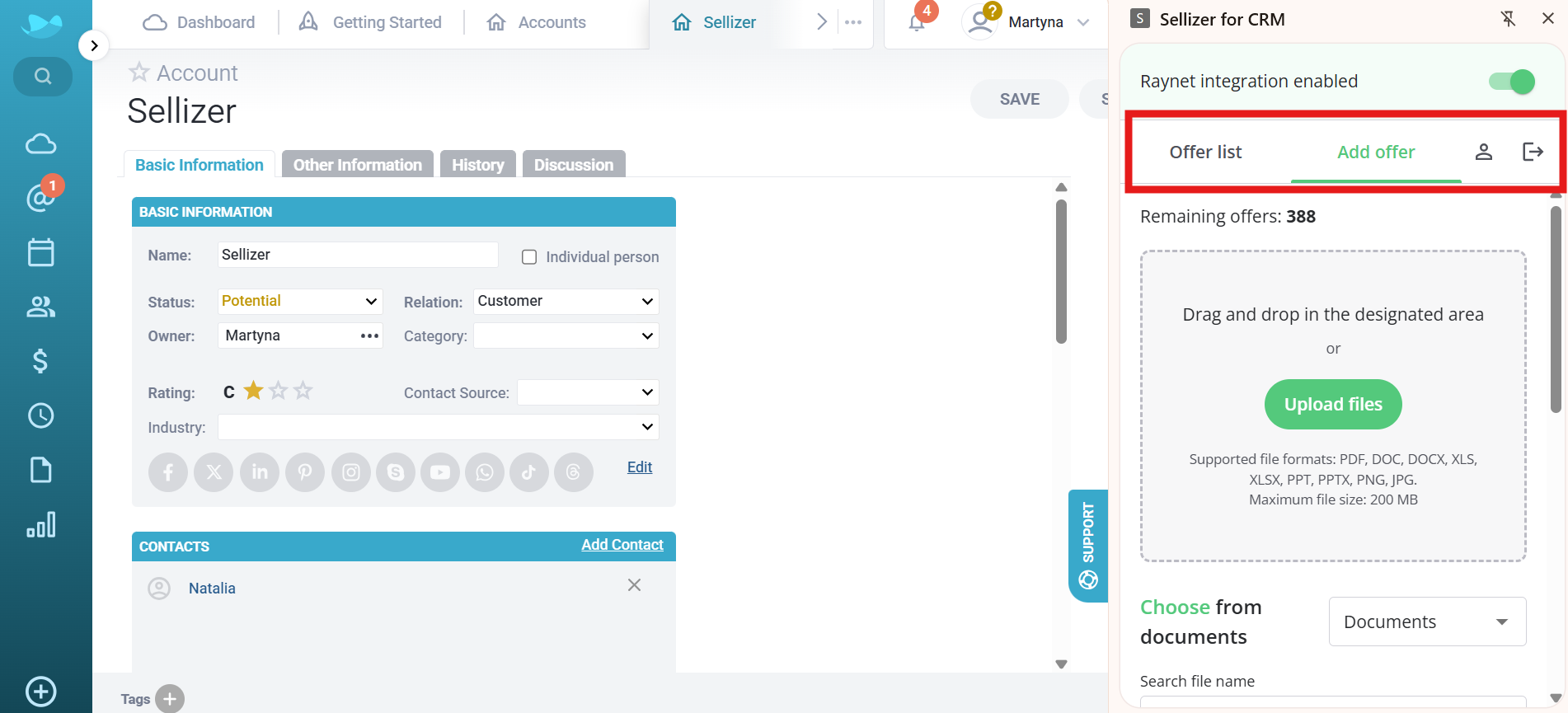
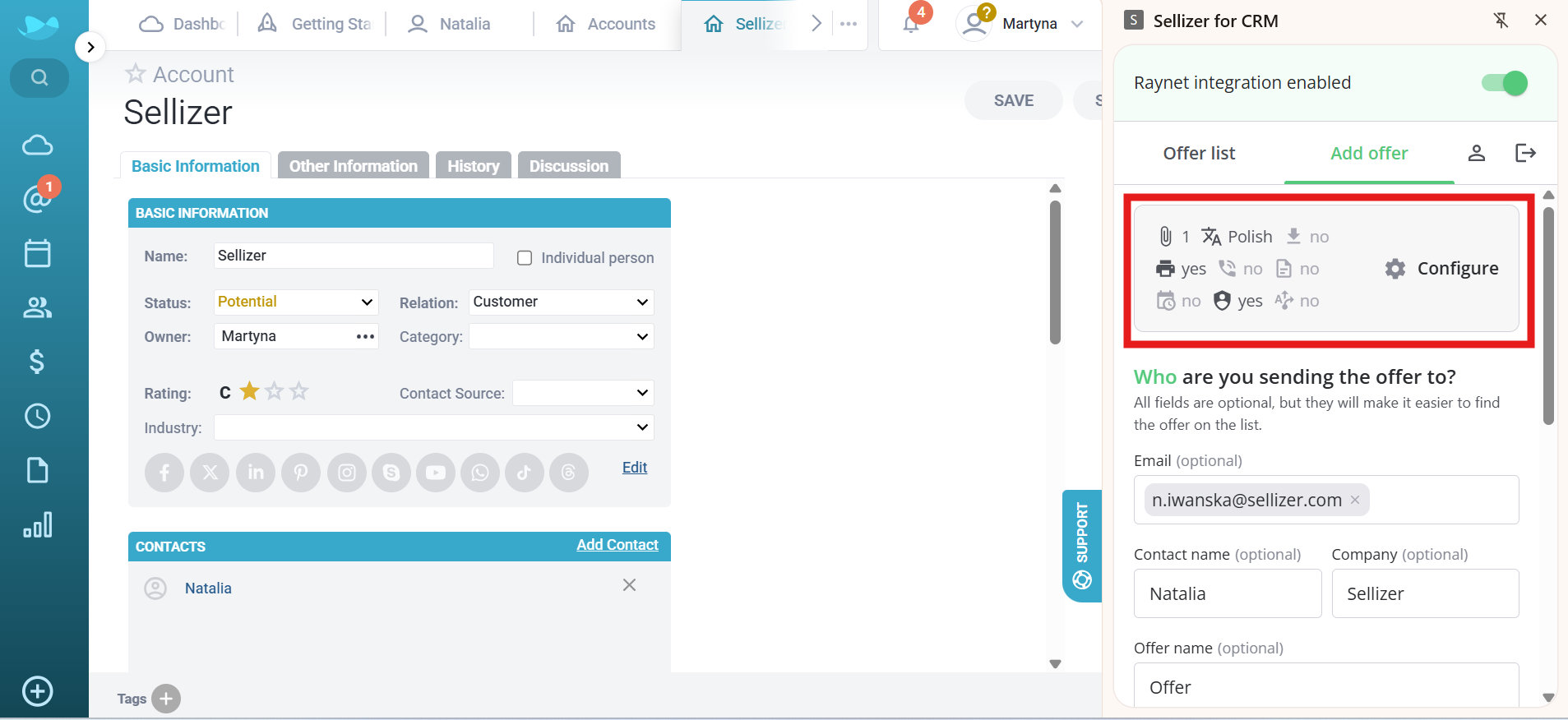
Step 3 — Offer Configuration (optional)
Before sending, you can configure the offer — e.g. add an expiry date, a "Order Contact" / "Order Contract Template" pop-up, or automatic follow-ups. Recipient data is pulled automatically from Raynet - no manual input required.
Step 4 — Sending the Offer
Choose your sending method:
Option A — Copy Link: Copy the link and send it yourself, e.g. directly via email in the CRM. Once copied, simply forward it to the client outside of Sellizer. Remember to select the visual style for the offer link:
-Graphic
-Text Link
-HTML
Option B — Send via Sellizer: Click "Continue", then:
1. Recipient data is pulled automatically from the CRM.
2. Fill in the message subject (email subject).
3. Choose the visual style of the offer (graphic format is the default).
4. Fill in the message content.
5. Choose whether to send the offer immediately or schedule it for later.
6. Click "Continue" to proceed to the offer summary.
7. Confirm sending with the "Send Now" button.
Where else can you send an offer with automatic data retrieval in Raynet?
The same sending process (with automatic data retrieval from the CRM) is also available in:
contact persons
leads
Monitoring Statistics
In the "Offer List" tab, you can track the statistics of sent offers in real time. If a recipient opens an offer, a green statistics icon will appear next to it — click it to view the details.
Tip: You can resize the extension sidebar at any time.