
Sharing files within the team

Written by Natalia Iwańska
Document management allows the administrator and any team member with the appropriate permissions to share files with the entire organization or only with selected individuals.
Additional useful information you can check includes:
which team member is the owner of a given file
how many people it has been shared with
the file size
when the file was last used
To share a file:
go to the Documents tab,
click the file sharing icon located in the Actions column next to the document,
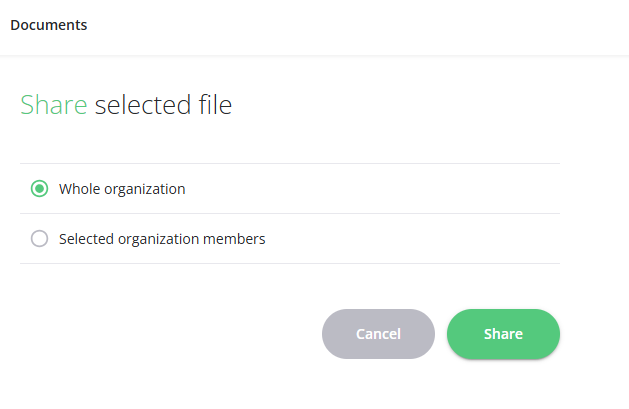
choose whether you want to share the file with your entire organization (sales team) or only with selected individuals,
click the Share button.
For more information, please contact us via chat, email: support@sellizer.com or the form.