
Google Consent Mode v2 (GCM v2) in Sellizer

Read the whole article to find out how you can put this into practice in your marketing!
We have rolled out full support for Google Consent Mode v2 (GCM v2), together with a native window.dataLayer.
What this means in practice for a Sellizer customer:
You can plug in any analytics/marketing script that supports GCM v2 (Hotjar, Microsoft Clarity, GA4, Meta Pixel with CAPI, LinkedIn Insight Tag, etc.) — and it will automatically respect the GDPR consents given by the offer recipient.
You can plug in Google Tag Manager (GTM) as a “container” for the remaining marketing scripts — GTM natively supports GCM v2, so tags inside GTM fire exactly when they are allowed to.
You can run remarketing campaigns targeted only at people who viewed the sales offer and agreed to marketing cookies — a very narrow, very hot segment.
1. Why GCM v2 matters in Sellizer
A sales offer sent through Sellizer is also web traffic. The recipient opens the link, spends a few to several minutes inside the offer, clicks sections, scrolls. These are real engagement signals — and if the recipient consents to marketing cookies, you can then reach them with remarketing in Google Ads, Meta or LinkedIn.
Without GCM v2, you cannot do this in a legally compliant way. With GCM v2 — you can, and very precisely at that.
In the new Sellizer Viewer, GCM v2 support is built in. You do not need an external CMP (Cookiebot, OneTrust), you do not need a developer or a separate integration. You configure it once at the organization level, and every subsequent offer uses it automatically
2. How does it work in practice?
Right after the Viewer loads, Sellizer pushes consent default to the dataLayer before any tracking script is loaded. By default, all marketing and analytics signals are denied, technical signals are granted. Exactly the model Google requires.
When the recipient clicks “Accept” in the consent banner, Sellizer pushes consent update and grants all the consents you defined in the configuration (described later in the article).
*Viewer — the offer the customer sees
3. GCM v2 signals available in Sellizer
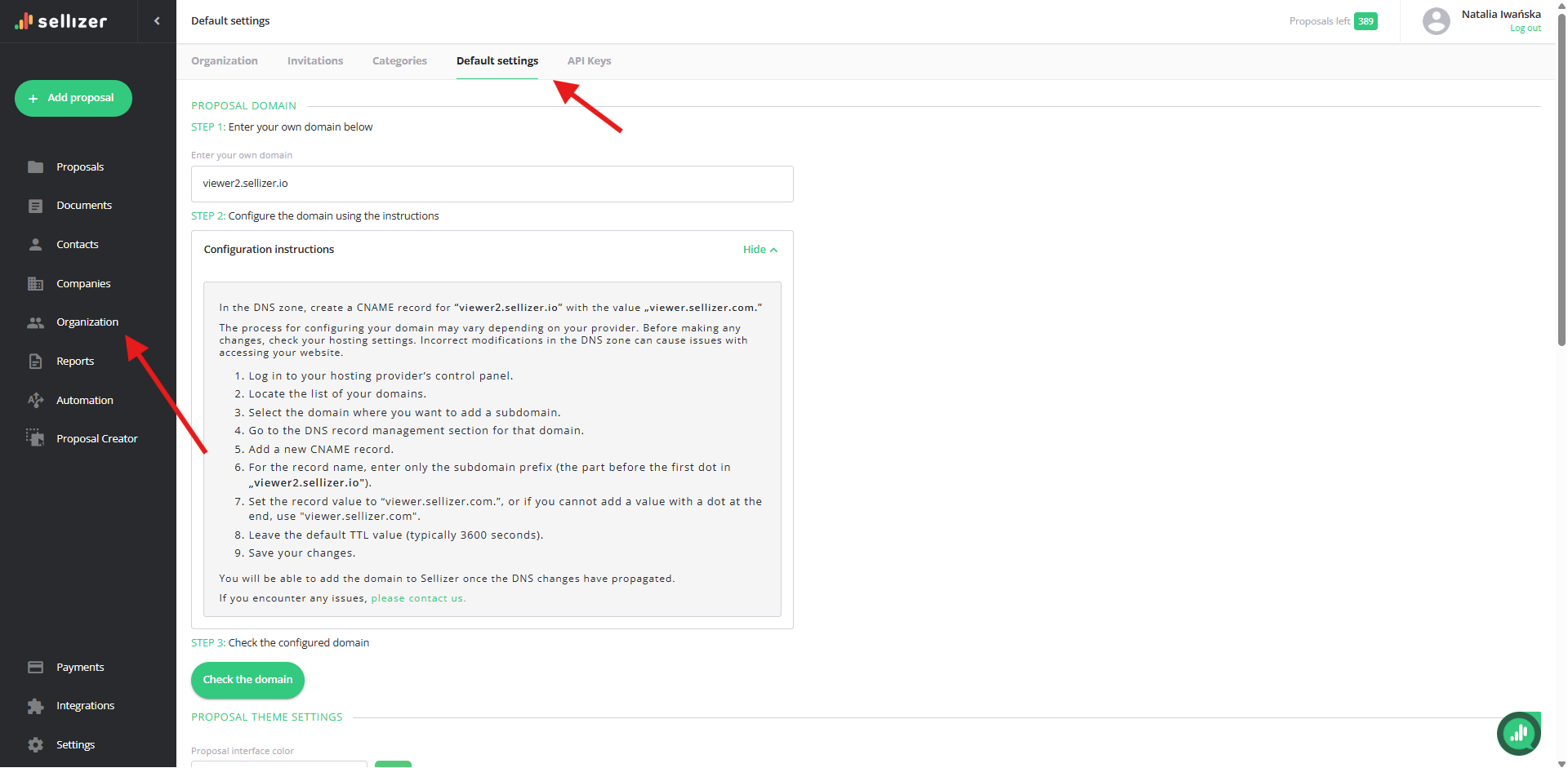
To access GCM v2 signals in Sellizer, click the “Organization” panel and the “Default settings” tab. Then scroll down to the “Defalut GDPR Consents Settings” section and select “Add GDPR”:
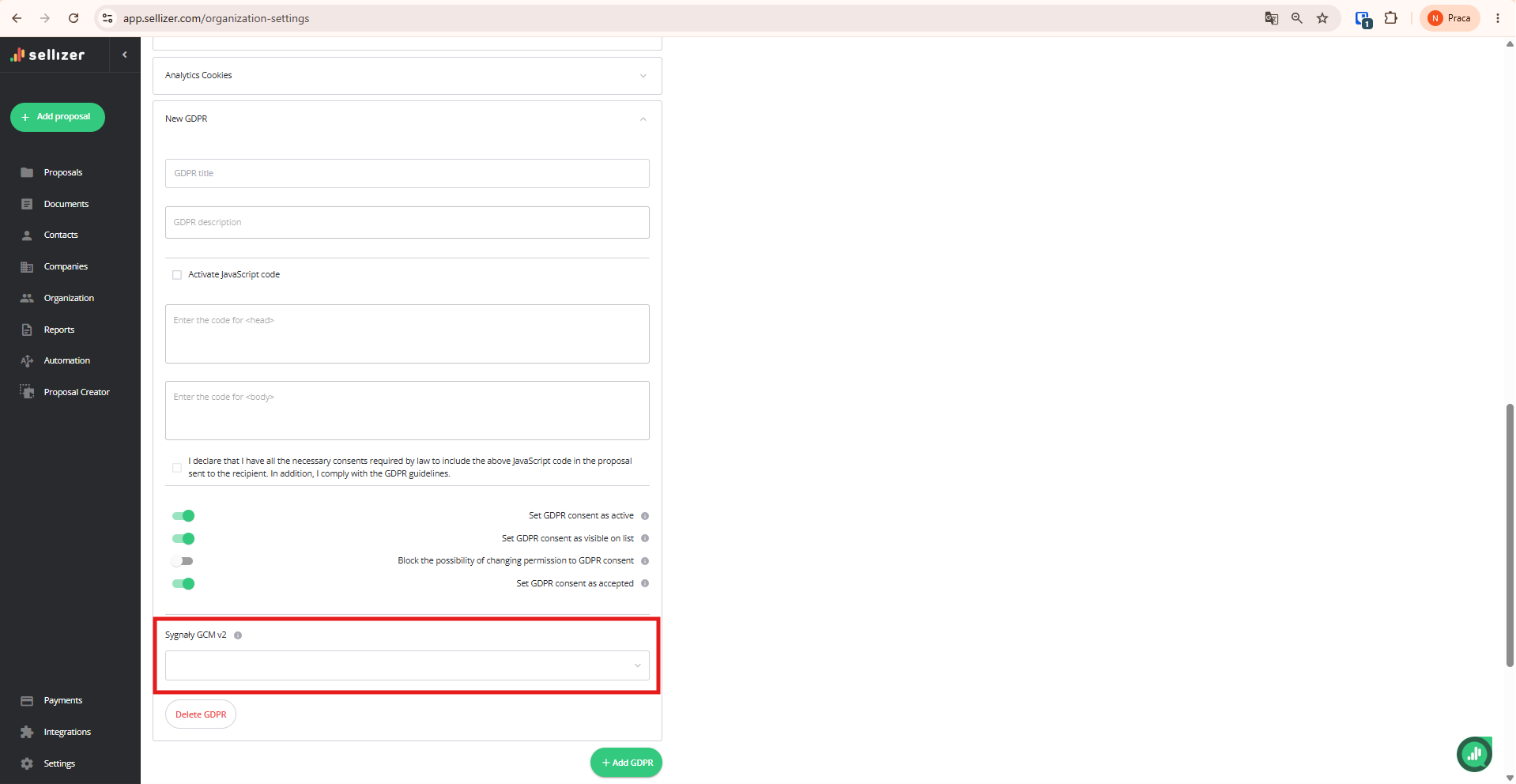
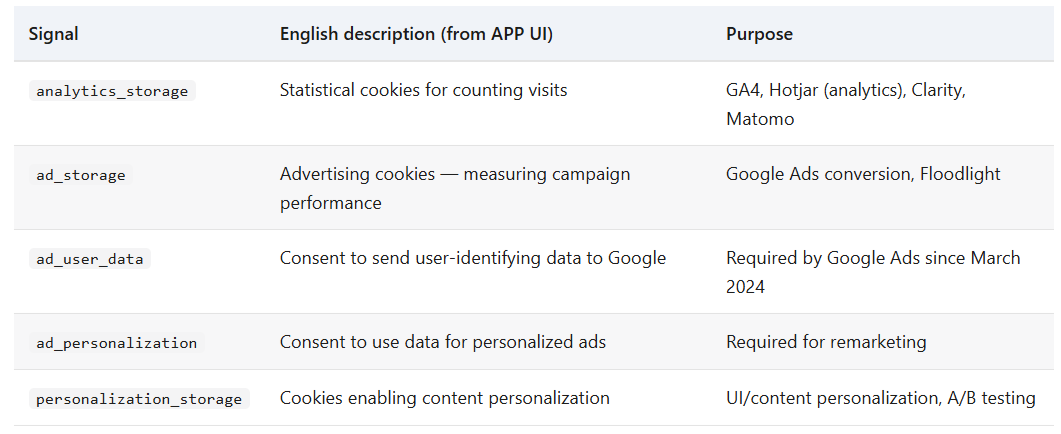
In Sellizer you can configure five signals. The remaining two (security_storage, functionality_storage) are set to granted by the Viewer automatically — Google explicitly states that they are not part of Consent Mode (they are essential for the page to work, not for tracking).
4. Prerequisites:
Before you start configuring:
You must have your own company domain configured in Sellizer in order to be able to modify and add your own consents (which contain JavaScript code).
You must add the marketing consent yourself — because marketing consent must be knowingly accepted by the user (GDPR does not allow it to be accepted by default). If you want to run remarketing, you add it manually. By default, Sellizer has three consent categories: Essential, Functional, Analytical.
5. Where you configure it
Everything in one place in Sellizer: Organization → Default settings → Default GDPR Consents Settings.
The configuration is set once for all offers. If, however, you want to modify a single offer, you have that option while sending it. Just disable the consent in the “GDPR” section by unchecking the “Set consent as active” option.
6. And how can you actually use this new functionality in Sellizer? (three usage scenarios):
Scenario A — a script that natively supports GCM v2 (Hotjar, Clarity, GA4)
Scenario B — a script without GCM v2 support → through GTM
Scenario C — Remarketing targeted at offer recipients
Scenario A — a script that natively supports GCM v2 (Hotjar, Clarity, GA4)
Step by step:
Go to Organization → Default settings → Default GDPR settings.
Go to Organization → Default settings → Default GDPR settings.
Click “+ Add GDPR” and tick the “Activate JavaScript code” checkbox.
In the “<head> scripts” field, paste the Hotjar / Clarity / GA4 code.
Tick the “I declare that I have the appropriate rights…” checkbox.
Save settings.
What happens on the recipient's side:
The Viewer loads and immediately pushes to the dataLayer: consent default with analytics_storage: denied.
The Hotjar script loads immediately, but it reads the dataLayer and sees denied → it does not collect any data.
The recipient clicks “Accept” → the Viewer pushes consent update with analytics_storage: granted → Hotjar detects the change → starts collecting data.
Scenario B — a script without GCM v2 support (via GTM)
If you want to use a tool that does not natively support Consent Mode v2 (an older pixel, a less popular marketing automation system), we recommend injecting Google Tag Manager instead of the script itself.
GTM has built-in GCM v2 support — every tag in GTM can be configured to fire only when the relevant signals are granted. You manage tags in GTM (which the marketing department usually knows), not in Sellizer.
Configuration in Sellizer:
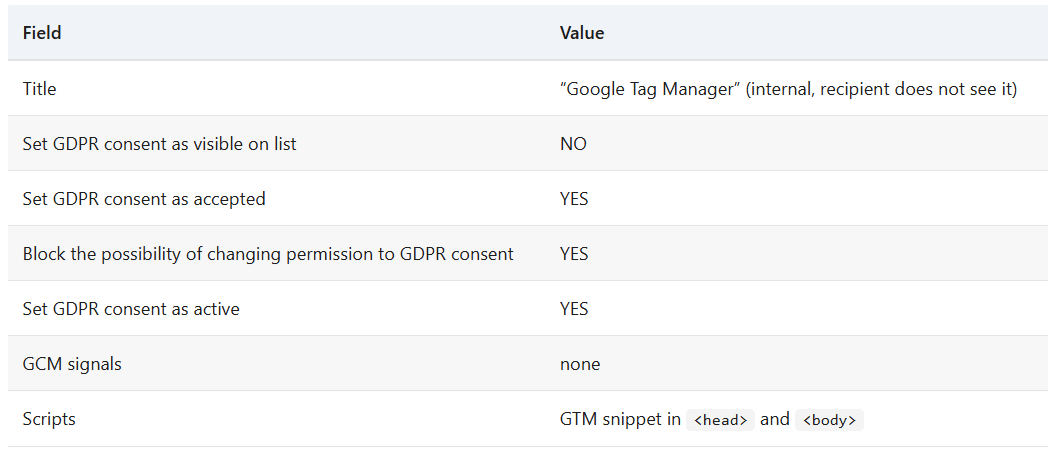
1. Create a new, invisible “technical” consent — for example “Google Tag Manager”:
Set GDPR consent as active = YES (active)
Set GDPR consent as visible on list = NO (the recipient will not see it)
Block the possibility of changing permission to GDPR consent = YES (locked, cannot be changed)
Set GDPR consent as accepted = YES (pre-accepted)
GCM signals: none (GTM itself manages the signals based on the remaining consents; this clause only injects the container)
• In Sellizer, add a new consent and click the “Enable JavaScript code” checkbox, then paste the standard GTM snippet (the part for <head> and the part for <body>).
2. In GTM, add the tags you need and set the required consent signals on them in the “Additional consent checks” section.
What happens on the recipient's side:
The Viewer pushes consent default with all signals denied.
GTM injects itself immediately (because the clause is auto-accepted).
GTM sees denied → it blocks its tags.
The recipient accepts the consents → the Viewer pushes consent update → GTM unblocks the tags whose required signals are now granted.
Scenario C — Remarketing to offer recipients"
Business context:
You sent a sales offer through Sellizer. The recipient:
Opened the offer → you know they are interested..
Viewed it → you know how much time, which pages, what kept them engaged (Sellizer measures this).).
Did not reply right away — they are thinking it over, comparing, putting it aside.
Within that time window (several hours to several days), the recipient is an exceptionally valuable advertising target: they know who you are, they know the offer, and they have real buying intent.
The classic problem: you cannot retarget them, because this was not traffic on a website, just a link to an offer.
The solution: thanks to GCM v2 and GTM you can build such a segment on the Google Ads / Meta / LinkedIn side. A recipient who accepted marketing cookies in the Viewer ends up on a remarketing list.
Configuration — the “two consents” strategy:
You need both consents — remarketing won't work without either of them:
Only Consent 1 (marketing) → the recipient clicks “Accept”, but the page has no GTM to act on it. Nothing happens.
Only Consent 2 (technical) → GTM is on the page, but the recipient was never asked for marketing consent. Again, nothing happens.
Both together → the recipient clicks “Accept” → GTM sees it → adds them to the remarketing list in Google Ads.
Consent 1 — visible marketing consent (it does not exist by default — you have to add it yourself):
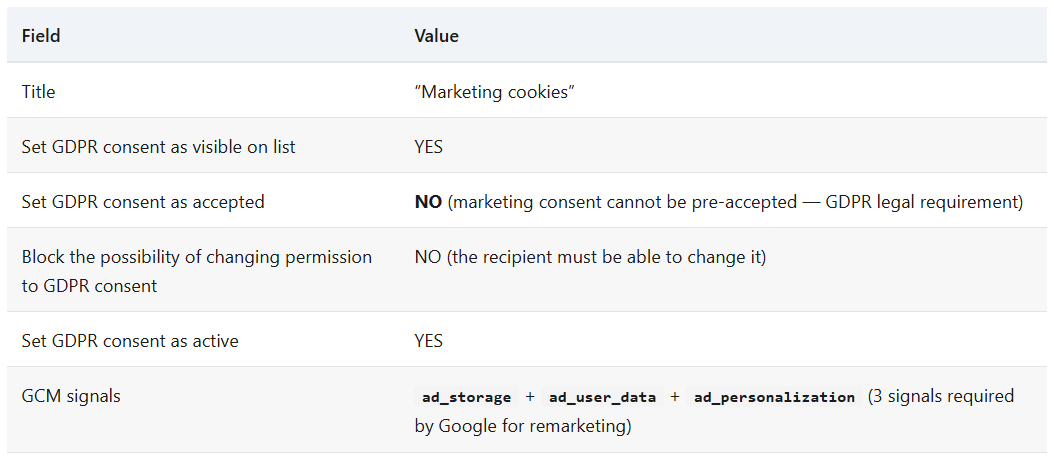
Optional fourth signal personalization_storage, if you want to personalize ad content.
Consent 2 — invisible “technical” consent — the recipient will not see it (GTM injection):
In GTM, do this: a Google Ads remarketing tag (Conversion Linker + Remarketing Tag) with the condition “Additional consent checks → require ad_storage, ad_user_data, ad_personalization”.
What happens step by step on the recipient's side:
The recipient opens the offer.
The Viewer pushes consent default with advertising signals denied.
GTM injects itself (because the technical consent is auto-accepted).
GTM sees denied — the remarketing tag is held back.
The recipient clicks “Accept all”.
The Viewer pushes consent update with ad_storage: granted, ad_user_data: granted, ad_personalization: granted.
GTM detects the change — it fires the remarketing tag.
Google Ads dodaje odbiorcę do listy remarketingowej.
Google Ads adds the recipient to the remarketing list.
They come back to the offer, accept it — sale closed
7. Common mistakes to avoid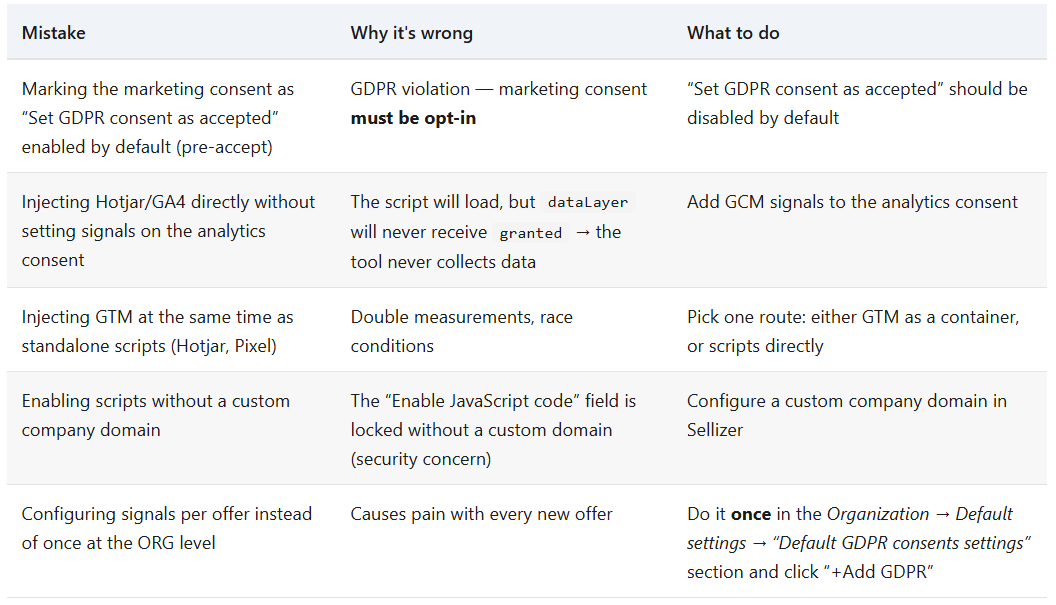
8. FAQ
Do I need to be a developer to set this up?
No. Everything in the app is clickable — you pick signals from a list, switch toggles on/off, and optionally paste the GTM code (one snippet, copy-paste from your GTM account).Does it work in all Viewer languages?
Yes. The dataLayer / GCM v2 mechanics are language-independent. You translate the consent titles and descriptions in 4 languages (PL, EN, DE, IT) in the same form.Can I use another CMP (e.g. Cookiebot, OneTrust)?
There is no need — Sellizer is your CMP inside the Viewer. Trying to bolt on a second CMP will lead to a conflict of consent pushes in the dataLayer.Do you support Microsoft Consent Mode / other ecosystems?
Currently only Google Consent Mode v2. Most tools (Meta, LinkedIn, Hotjar, Clarity) read from Google’s dataLayer anyway.What if the recipient visits the offer a second time?
Decisions are saved. The second visit immediately pushes a consent default consistent with the previous decision — without showing the banner.Can security_storage and functionality_storage be disabled?
No, and that is intentional. Google explicitly states that they are not part of Consent Mode (they are essential for the page to work, not for tracking). Sellizer always sets them to granted.