
Follow ups

Save time and engage buyers - Follow-up automatic messaging module!
Follow ups in Sellizer are emails sent automatically to the recipient of an offer after a specific condition for displaying the offer has been met. The module allows you to freely determine the content of the message (e.g., reminders), and emails are sent from the email address integrated with your Sellizer account.
To integrate your Sellizer account with your email, follow the instructions appropriate for your mailbox: Integration of Sellizer with your mailbox.
The follow up module allows you to build message scenarios based on triggers related to offer parameters. For example:
send message 1 on my behalf if the customer has not opened the offer within 24 hours,
send message 2 on my behalf if the customer has spent more than 5 minutes on the offer,
send message 3 on my behalf if the customer has opened it for the third time, etc.
How does the module work?
To view available scenarios, select the "Automation" panel -> tab "Follow-ups" -> green button: New script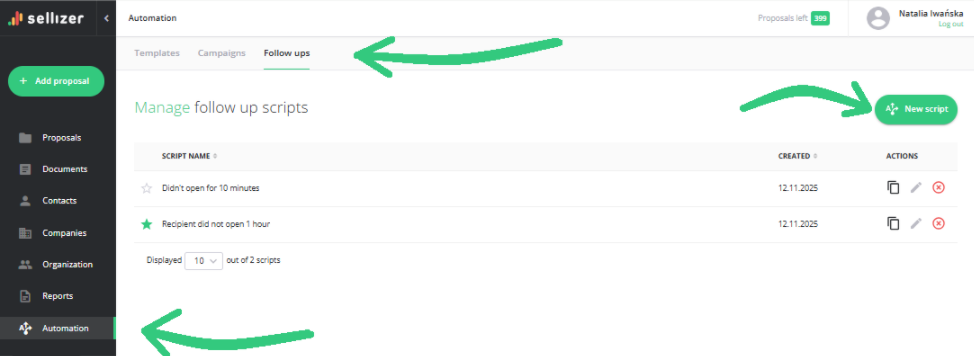
This module allows you to create follow-up scripts based on the following conditions:
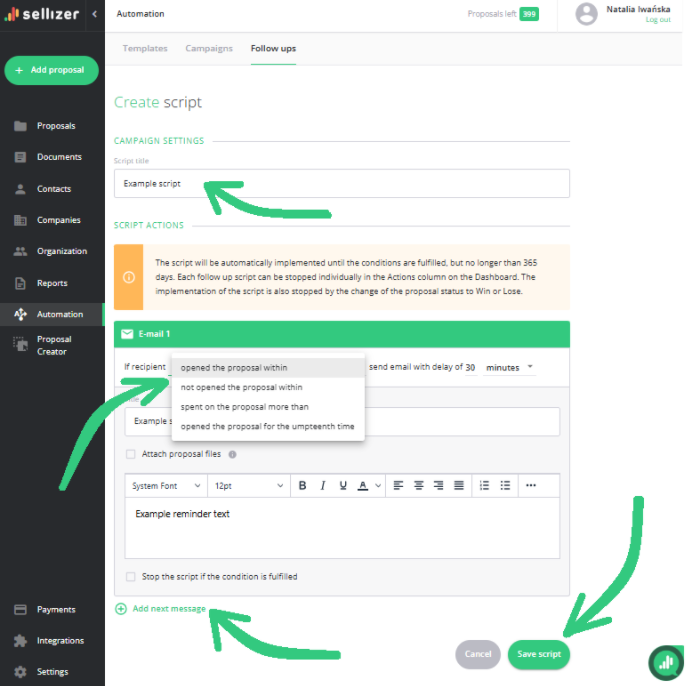
After being activated, the follow-up script will be automatically executed until the conditions (which you set according to your needs) are met, but no longer than 365 days. You can stop each follow-up individually in the Actions column in the list of offers. The execution of the script is also stopped when the status of the offer is changed to Won or Lost.
To use the follow-up script:
Click the Add proposal button. Select a Template, add a file from your disk or previously uploaded documents, and then proceed to edit the offer.
The option to start the offer follow-up automation can be found under the message field for the recipient.
Select the "Start a follow-up messages automation" option, and then select the script you want to activate from the list.
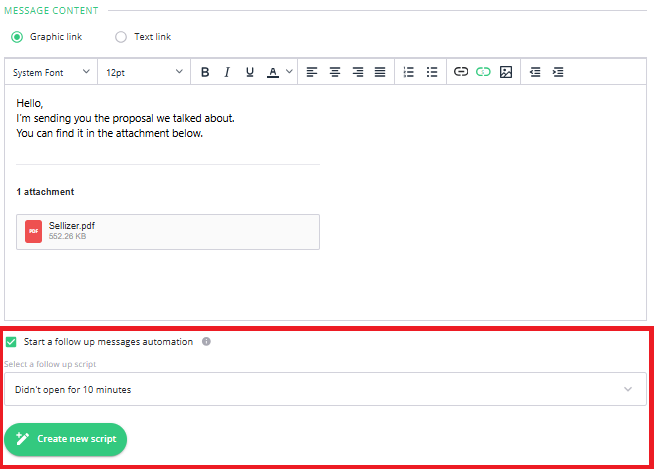
Proceed and confirm the offer sending.
Additionally, you can select a default script for newly created offers in the "Settings" panel -> tab: "Default settings".
Note: Follow-ups are available for Administrators and for the Custom role. If you don’t have access to this feature, please ask your Organization Administrator to grant you the appropriate permissions. The Administrator can change your role in the Organization panel – simply click the edit button next to your account and go to the Permissions tab.
For more information, please contact us via chat, email: support@sellizer.com, or the form.