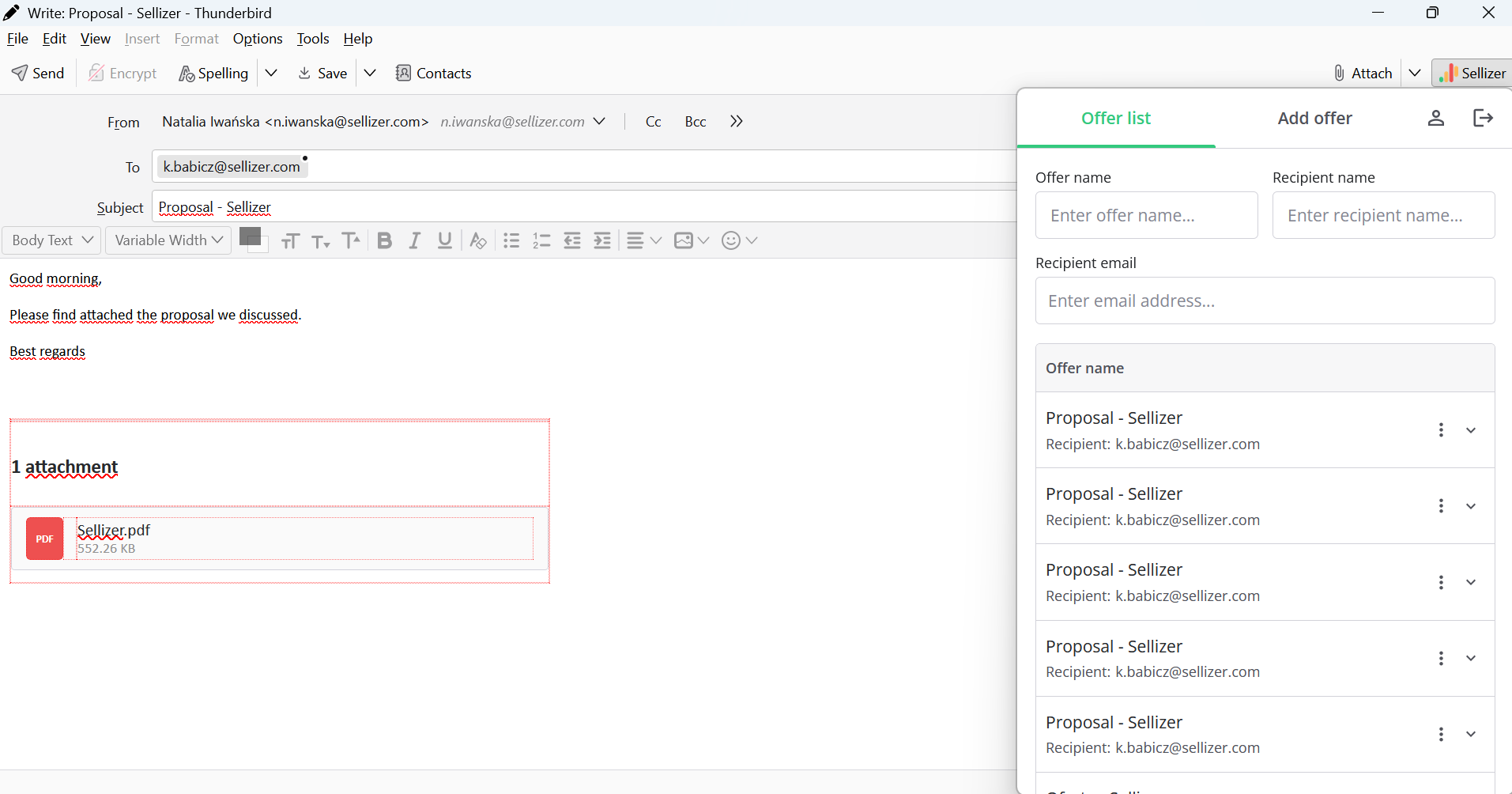
Thunderbird integration - email add-on

How to install the Sellizer add-on for Thunderbird?
1. Go to Thunderbird settings and click "Add-ons and Themes".
2. Go to "Extensions".
3. Search for "Sellizer" and click "Install".
Where to find the add-on?
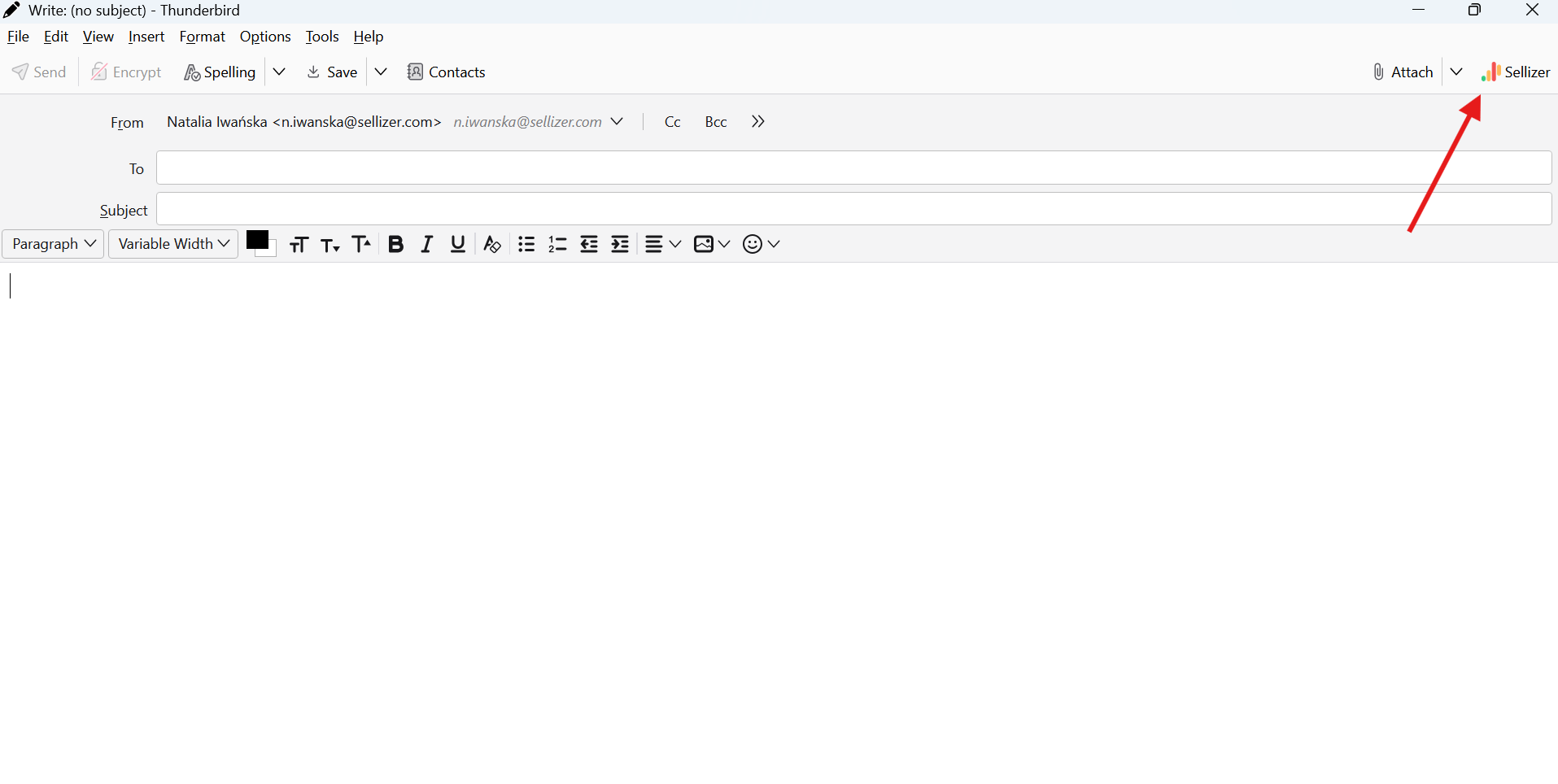
The add-on is available while composing a new message. Click New message, then open Sellizer, located in the top-right corner, and log in to your Sellizer account.
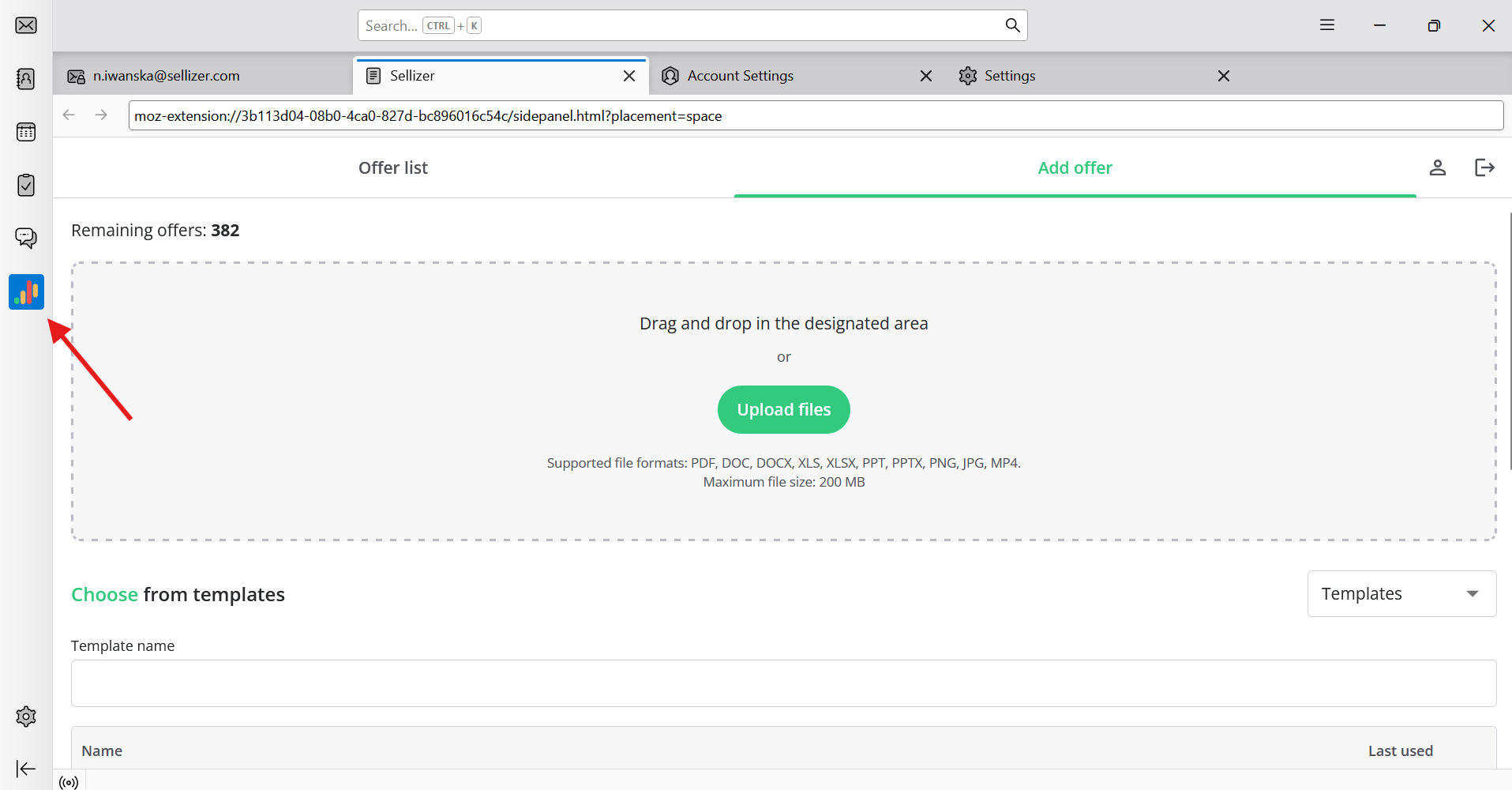
Optionally: the add-on is also available on the left side of the panel:
How to use the Sellizer add-on in Thunderbird?
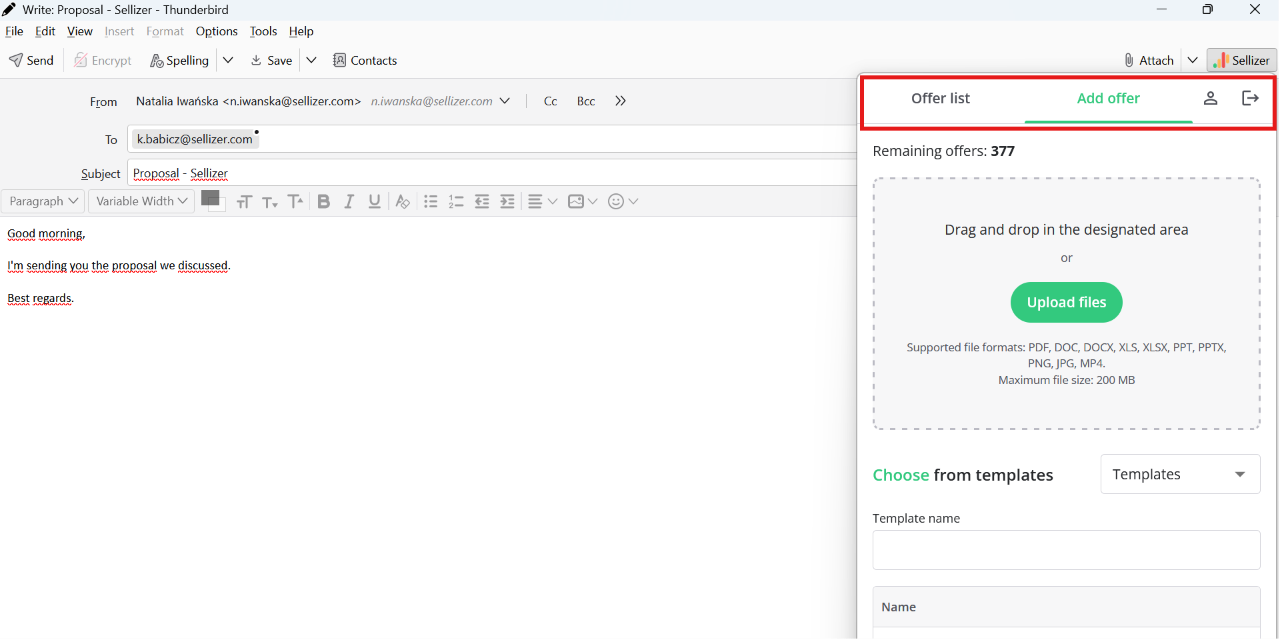
Once logged in, you have two tabs available:
Offer list: here you will find all proposals sent to a given contact.
Add offer: send a proposal to the client - upload a file or choose a previously prepared template or document from Sellizer.
Proposal configuration (optional)
Before sending, you can configure the proposal: add an expiry date, a "Request contact" / "Request a draft contract" pop-up, or automatic follow-ups. If you fill in the recipient's details in the Thunderbird email, the add-on will retrieve them automatically.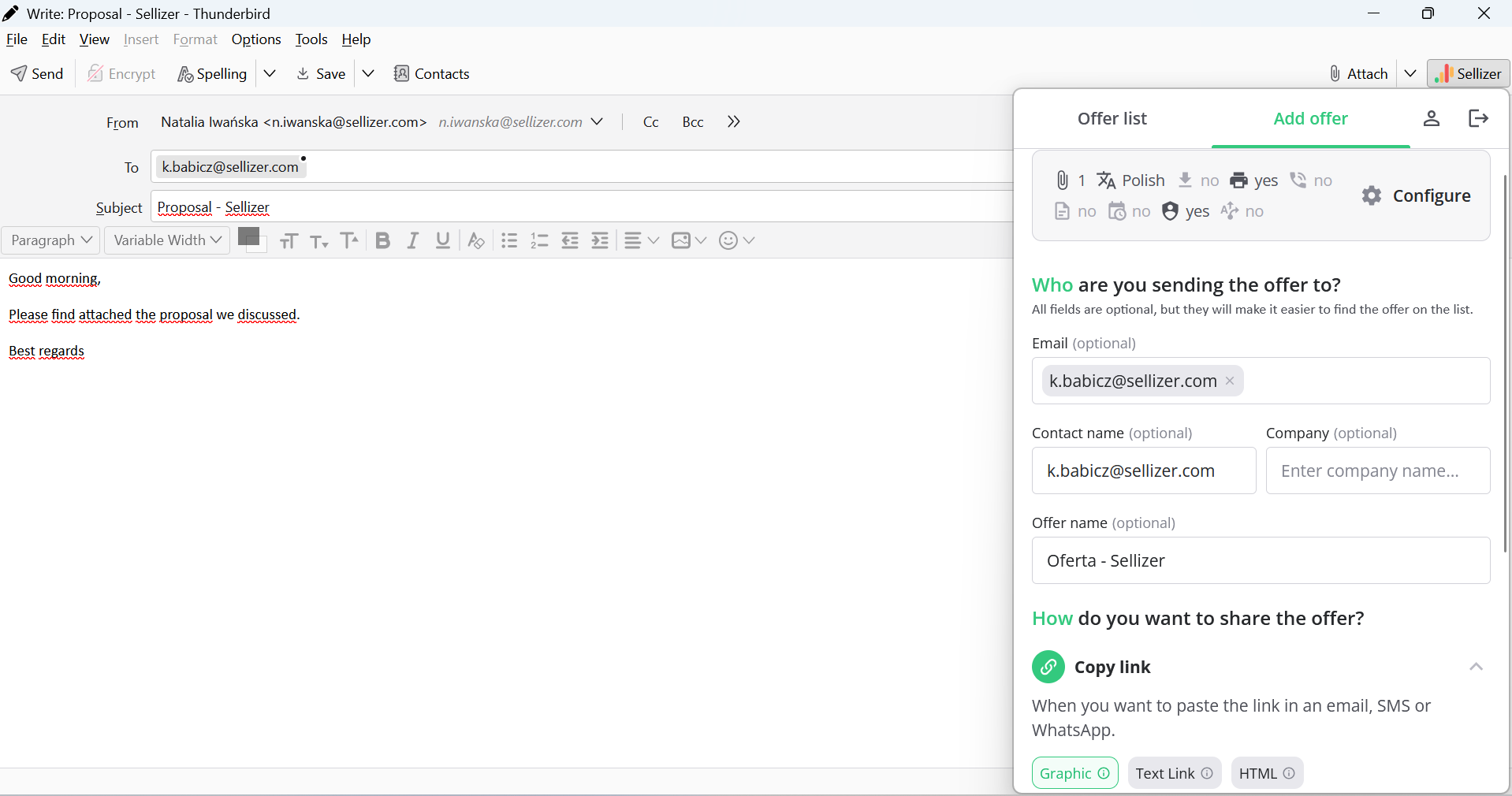
Sending a proposal
You have three options to choose from:
Copy link: copy the link to the proposal and send it yourself, including outside Thunderbird. Choose the link's visual style: graphic, text, or HTML.
Paste link: paste the link directly into the body of the message you are composing in Thunderbird.
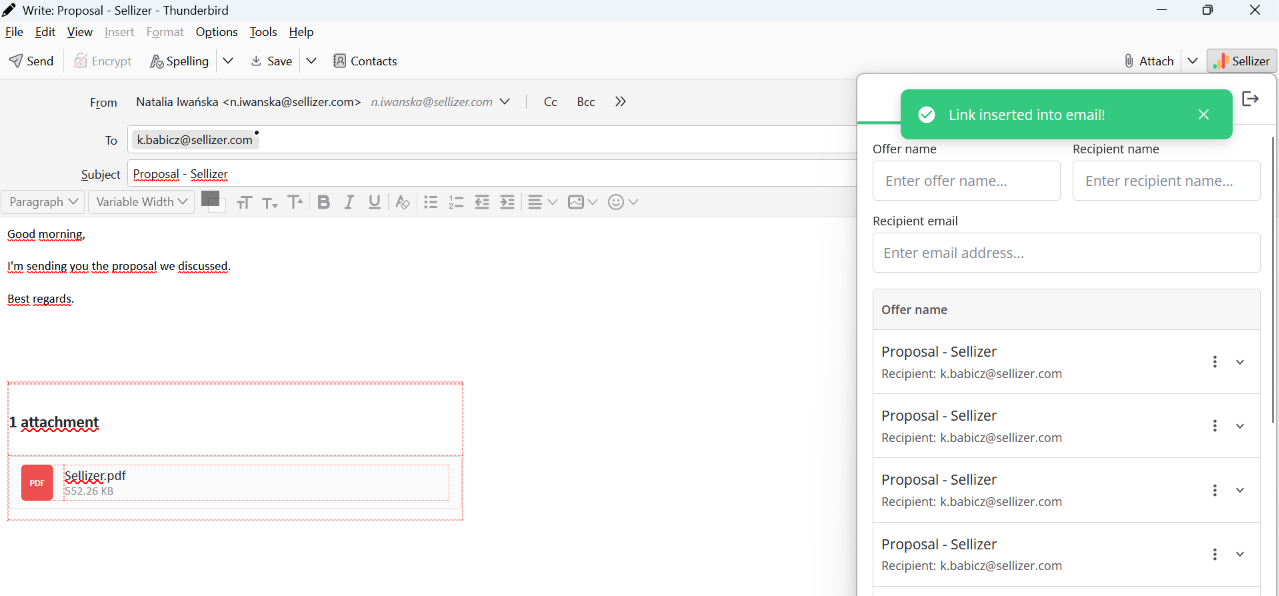
Send via Sellizer: click "Continue", fill in the subject and body of the message, choose the proposal's visual style, decide whether to send it right away or schedule the send, and finally confirm with the "Send now" button. The recipient's details are retrieved automatically from the Thunderbird email.
Monitoring statistics
In the List offer tab you monitor the statistics of sent proposals in real time. When the recipient opens a proposal, a green statistics icon appears next to it (click it to see the details of the client opening the proposal).